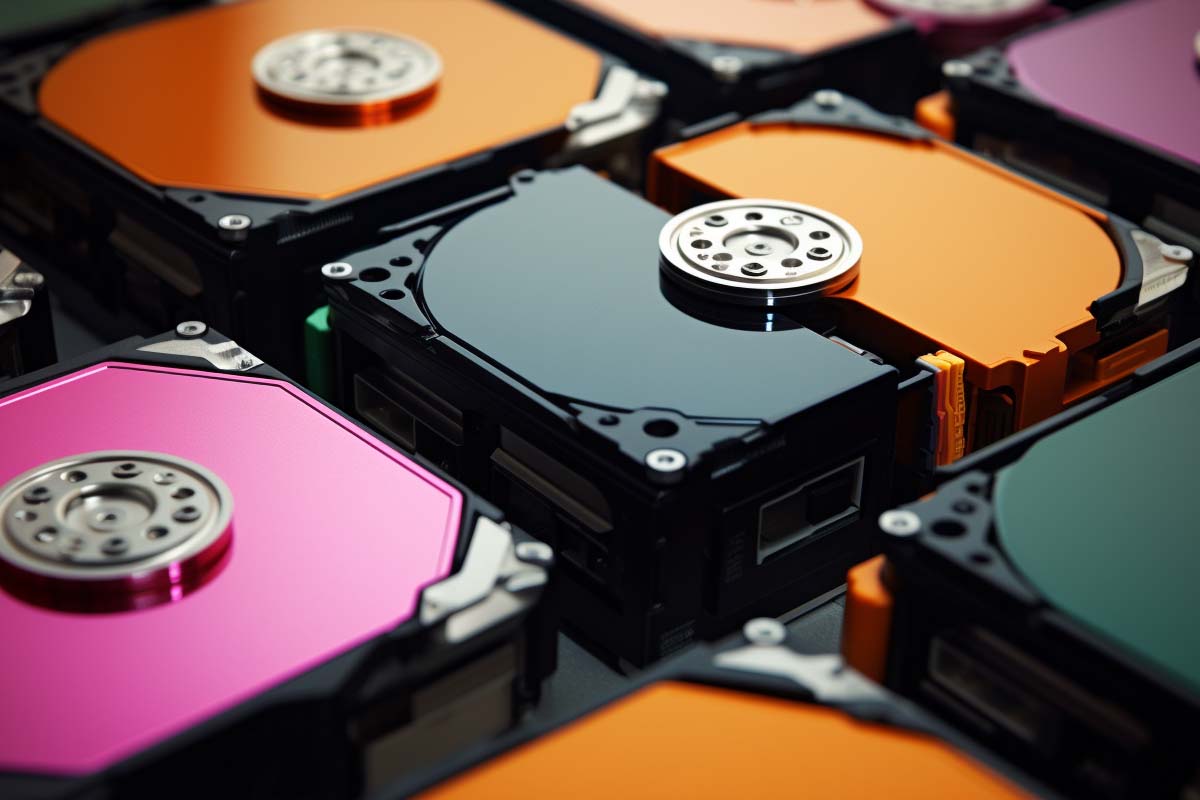
Most people shopping for a 1tb ssd internal hard disk are really trying to solve a different problem: how do you get the right mix of speed, capacity, and compatibility without overpaying? The labels make that harder than it should be. HDD, SATA SSD, NVMe, and M.2 do not mean the same thing, and mixing them up is how buyers end up with slow boots, wasted money, or a drive that does not fit the system.
Quick Answer
Choose a 1tb ssd internal hard disk based on workload, not marketing terms. HDDs are best for cheap bulk storage, SATA SSDs are the best value for everyday speed, NVMe SSDs deliver the highest performance for demanding tasks, and M.2 is only a form factor that may support either SATA or NVMe. The right choice depends on your device, budget, and how often you access the data.
| Primary buying question | Should you choose HDD, SATA SSD, NVMe SSD, or M.2? |
|---|---|
| Best value for most users | SATA SSD for everyday speed and balanced cost |
| Best performance tier | NVMe SSD for heavy multitasking, creators, and databases |
| Best cheap capacity | HDD for archives, backups, and bulk storage |
| Most common confusion | M.2 is a Form Factor, not a speed class |
| Typical consumer use | 1tb ssd internal hard disk for OS, apps, games, and active files |
| Best mixed setup | SSD for the operating system plus HDD for bulk storage |
| Criterion | HDD | SSD |
|---|---|---|
| Cost (as of August 2026) | Lowest cost per terabyte | Higher cost, especially for NVMe |
| Best for | Backups, archives, media libraries | Operating systems, apps, active work |
| Key strength | Maximum capacity for the money | Speed, low latency, responsiveness |
| Main limitation | Mechanical latency, noise, and slower access | More expensive per terabyte |
| Verdict | Pick when capacity matters most | Pick when speed and responsiveness matter most |
For a decision like this, the right answer usually comes from the workload. A video editor, a home NAS user, and a laptop buyer all need different things, even if they are all shopping for a 1tb ssd internal hard disk. That is why this guide focuses on practical tradeoffs: capacity, speed, form factor, interface, power use, and reliability.
The best storage drive is not the fastest one on paper. It is the one that matches how the system is actually used.
HDD Basics: The Cheapest Way to Buy Large Amounts of Storage
HDD is short for hard disk drive, and it stores data on spinning magnetic platters that are read by a moving head. That mechanical design is why HDDs are inexpensive per terabyte and still popular for bulk storage. It is also why they are slower than flash-based drives: every access involves physical movement, and physical movement creates delay.
This delay shows up as latency, which is the time it takes a drive to start delivering data after the request is made. In real use, latency matters as much as raw throughput. A drive can look acceptable on a spec sheet and still feel sluggish when the system is opening apps, searching indexes, or loading many small files.
Where HDDs still make sense
- Backups where cost per terabyte matters more than speed.
- Archives that are written once and read occasionally.
- Media libraries with large photos, videos, and ISOs.
- Surveillance systems that write continuously and store large amounts of footage.
- Budget NAS systems where capacity is the priority and SSD speeds are unnecessary.
HDDs also have tradeoffs that buyers often ignore. They make noise, draw more power than SSDs, and are more sensitive to vibration and shock because of their mechanical parts. For a home server or desktop, that may be manageable. For a laptop or compact travel system, it is usually a bad fit.
Warning
An HDD is not a good choice for an operating system drive if you care about boot speed or app responsiveness. The machine may be functional, but it will feel slow every single day.
For buyers comparing a 256 gb hdd against a small SSD, the real issue is not just capacity. It is whether the extra space is worth giving up responsiveness. In most consumer systems, the answer is no unless the drive is only storing infrequently used data.
SATA SSDs: The Best Upgrade for Everyday Speed Without Overspending
SATA SSD is a flash-based drive that uses the SATA interface, the same connection standard that many older hard drives used. That is the key reason SATA SSDs were such a major upgrade from HDDs: they cut boot times, file opens, and application launches dramatically without requiring a new class of motherboard support.
In everyday use, a SATA SSD often gives the biggest perceived performance jump for the lowest price increase. If a system still boots from an HDD, moving to a SATA SSD is one of the most noticeable upgrades you can make. Windows, browsers, office apps, and lightweight creative tools all feel more responsive because the drive no longer has to wait on spinning platters.
Why SATA SSDs are still relevant
- Older laptops that support 2.5-inch SATA drives but not modern NVMe slots.
- Standard office desktops where the goal is fast, reliable daily use.
- Secondary game storage where load times matter, but not every millisecond matters.
- General-purpose machines that need a balanced mix of cost, speed, and reliability.
The big limitation is the interface itself. SATA has a speed ceiling, so even a very good SATA SSD will not reach the same top-end performance as an NVMe drive. That does not make it slow. It just means it is capped by the bus it uses, not by the quality of the flash alone.
If you are buying a 1tb nvme storage option and the price jump is significant, ask whether your workload actually needs it. For web browsing, document editing, streaming, and most office work, SATA SSD performance is already more than enough.
According to Microsoft guidance and system performance guidance in Microsoft Learn, storage responsiveness affects the feel of the entire system because the operating system constantly reads small files, caches, and application data. That is why a SATA SSD can transform an older PC even when the CPU and RAM stay the same.
NVMe SSDs: Maximum Performance for Demanding Workloads
NVMe is a storage protocol designed specifically for flash storage. It was built to reduce overhead and take advantage of parallelism, which is why NVMe drives outperform SATA SSDs in both sequential and random workloads. The difference is easy to see in benchmarks, but the more important effect is how the system behaves under load.
For a content creator moving large video files, a developer compiling projects, or an analyst querying large datasets, NVMe can reduce waiting time in ways that are immediately noticeable. Large file transfers complete faster, application launches are snappier, and multitasking feels smoother because the drive can handle more requests at once.
Where NVMe earns its keep
- Content creation involving large photo, audio, and video assets.
- Gaming when loading large open-world titles or multiple asset-heavy games.
- Software development with frequent builds, package restores, and virtual machines.
- Data analysis where I/O latency affects query and import times.
- Database workloads that benefit from low latency and consistent performance.
NVMe is often misunderstood as “the fastest drive by default,” but the real value is responsiveness under sustained use. A drive that wins one benchmark screenshot is less useful than a drive that keeps performing during long transfers, repeated writes, or mixed read/write activity.
There are downsides. NVMe drives can run hotter than SATA SSDs, and compact systems may throttle performance if airflow is poor. They are also more expensive per terabyte, so a shopper paying extra for top-tier speeds should be sure the workload will actually use them.
Official guidance from NVM Express explains that NVMe was designed to better exploit the parallel nature of NAND flash. That architecture is the reason NVMe became the default choice for high-performance desktops, workstations, and storage-intensive servers.
M.2 Explained: Form Factor, Not a Speed Standard
M.2 is a physical form factor, not a performance category. That is the most common mistake buyers make. An M.2 drive can be SATA or NVMe depending on how it is wired and keyed, so the shape alone tells you nothing about speed.
This matters because a lot of shoppers assume any M.2 drive is automatically fast. That is not true. Some M.2 SSDs are simply SATA drives in a smaller package, and they perform much like a 2.5-inch SATA SSD. Others are NVMe drives with far higher performance potential, but only if the system supports them.
What to check before buying M.2 storage
- Confirm the slot type on the motherboard or laptop manual.
- Check keying and length so the drive physically fits.
- Verify protocol support for SATA or NVMe.
- Check thermal clearance if the drive will sit under a heatsink or in a tight chassis.
- Review boot support if the drive will hold the operating system.
M.2 saves space, which is why it is common in laptops, mini PCs, small-form-factor desktops, and modern motherboards. It also makes it easy to build clean systems with fewer cables. But the form factor itself does not guarantee speed, and that misunderstanding still causes bad purchases.
Note
Always verify both the form factor and the interface. An M.2 SATA drive and an M.2 NVMe drive are not interchangeable in every system, even though they may look identical.
If you are comparing a 2tb nvme ssd against a smaller SATA option, make sure the performance gain is worth the price and heat profile. For many laptops, the right answer is not “the fastest drive possible,” but “the fastest drive that fits, cools properly, and stays within budget.”
HDD vs SATA SSD vs NVMe: How to Match Storage to the Workload
The best way to choose storage is to ask two questions: how much capacity do you need, and how much speed will actually change the outcome? That framework cuts through most of the marketing noise. Once you know the workload, the right drive usually becomes obvious.
| Choose HDD when | You need lots of storage, read data infrequently, and want the lowest cost per terabyte. |
|---|---|
| Choose SATA SSD when | You want strong everyday performance and do not need extreme top-end throughput. |
| Choose NVMe when | You work with large files, many simultaneous tasks, or latency-sensitive applications. |
An HDD is the right answer for cold storage, media archives, and large backups. A SATA SSD is the right answer for an OS drive, office machine, or older system that needs a speed boost. NVMe is worth the extra cost when the workload involves repeated file access, heavy multitasking, or any environment where a few seconds saved over and over again become meaningful.
Simple workload examples
- Operating system drive: SATA SSD or NVMe, depending on budget and system support.
- Game library: SATA SSD for value, NVMe for the fastest load times in large titles.
- Media archive: HDD if the files are large and access is occasional.
- Database storage: NVMe when latency and consistent I/O matter.
- Backup target: HDD or a larger SSD if budget allows.
The practical rule is simple: fastest is not always best. A drive can be technically superior and still be the wrong purchase if the workload does not benefit from the extra speed.
Storage in Real Systems: Desktop, Laptop, NAS, and Server Scenarios
The right storage choice changes when the device changes. A desktop with room for multiple drives can use a mixed strategy. A thin laptop has different limits. A NAS or server has its own priorities, especially around capacity, endurance, and steady performance.
Desktop builds
For most desktops, the smartest layout is an SSD for the operating system and applications, plus an HDD for bulk data. That gives you fast boot and app launch times without paying SSD prices for every terabyte. It also keeps active work on faster storage while media, archives, and backups sit on the cheaper drive.
Laptops
Laptops usually favor SSDs because they are more resistant to shock, use less power, and fit better in tight spaces. An SSD also reduces battery drain and eliminates the mechanical risk of a hard drive taking a hit in a backpack or during travel. In a laptop, the tradeoff is usually not speed versus cost; it is practicality versus compromise.
NAS and home storage
For a NAS, HDDs still matter because they offer affordable multi-terabyte capacity. If the system is meant for shared media, backups, or file retention, the price per terabyte of HDDs often makes the build feasible. Many NAS designs also rely on redundancy, so the cost difference between HDDs and SSDs becomes even more important.
Servers and databases
Servers care about consistency, latency, and endurance more than marketing throughput. A database server that stalls under random write load can be worse than a slower drive that behaves predictably. For that reason, NVMe is often the right choice for active workloads, while HDDs are better suited to archival or backup roles.
The National Institute of Standards and Technology (NIST) publishes broad guidance on performance and system reliability considerations that align with a simple truth: the storage layer must match the service being delivered. A misfit drive can turn an otherwise healthy system into a bottleneck.
Performance Factors Beyond the Label
Performance is not determined by the drive name alone. Two drives with the same basic label can behave very differently once you factor in controller quality, NAND type, cache size, thermal limits, and sustained write behavior. That is why benchmark numbers should never be the only buying input.
Some drives look impressive during short tests because they rely on a fast cache. Once that cache fills, sustained write speed can drop sharply. That matters when copying large project folders, ingesting video, or running bulk imports. A drive that starts fast but slows down after several gigabytes may be fine for light consumer use and a poor fit for heavy workloads.
What really affects speed
- Interface limits that cap peak transfer rates.
- Controller quality that affects how efficiently the drive handles requests.
- NAND type that influences endurance, cost, and sustained behavior.
- Cache size that can make a drive feel fast until the cache is exhausted.
- Thermal throttling that reduces speed when the drive gets too hot.
System components also matter. A slow CPU, low RAM, or outdated chipset can make a good SSD feel less impressive than expected. In the same way, a modern NVMe drive installed in a poorly ventilated laptop may not sustain its top speed for long. The drive is only one part of the performance chain.
Benchmarks are a snapshot. Real storage performance is what happens after the cache fills, the workload gets mixed, and the system runs hot.
If you are evaluating a 1tb ssd internal hard disk for a work machine, look at sustained-write reviews, not just peak read numbers. That single habit prevents a lot of disappointing purchases.
Reliability, Lifespan, and Maintenance Considerations
Reliability is the ability of a drive to keep working predictably over time, and it is shaped by very different risks in HDDs and SSDs. HDDs face mechanical wear because they contain moving parts. SSDs do not have moving parts, but they do have flash endurance limits that matter under heavy write activity.
For typical consumer use, modern SSD endurance is usually more than enough. Most buyers will replace a system before they wear out a decent SSD through normal desktop use. HDDs, on the other hand, remain vulnerable to vibration, accidental drops, and general mechanical aging.
What improves drive lifespan
- Stable power and a decent power supply.
- Good cooling so the drive does not run hot for long periods.
- Redundancy when the data is important.
- Backups stored separately from the primary drive.
- Monitoring with SMART tools and regular health checks.
Backups matter no matter what type of drive you buy. A reliable drive can still fail unexpectedly, and a great drive can still be lost through theft, malware, corruption, or power events. The best storage plan is not “buy the safest drive.” It is “buy the right drive and protect the data properly.”
For standards-oriented buyers, CIS Benchmarks and vendor documentation are useful starting points for hardening and system maintenance, especially when storage supports critical endpoints or shared systems. A healthy drive strategy includes policy, not just hardware.
How to Choose the Right Drive for Your Budget
The simplest rule is also the most useful: buy for the task, not for the label. That means choosing the cheapest option that still meets the workload, then spending extra only when the speed or capacity will actually pay back in daily use.
For most people, that means putting the operating system and frequently used apps on SSD storage first. If budget is tight, SATA SSD is usually the sweet spot. If the machine handles large files or demanding multitasking, move up to NVMe. Save HDDs for bulk storage, backups, and data that does not need fast access.
Practical budget strategy
- Set the primary use case: OS, gaming, editing, backup, NAS, or server.
- Choose the fastest tier that the workload will actually use.
- Pick capacity second, based on real file growth and retention needs.
- Spend the remaining budget where it helps the whole system, such as RAM or a better CPU cooling solution.
- Use mixed storage if you need both speed and cheap capacity.
If you are deciding between a bigger SATA SSD and a smaller NVMe SSD, think about how the drive will be used. For many users, a larger SSD that avoids constant space pressure is more valuable than a faster drive that fills up quickly. If the drive is too small, performance and convenience both suffer.
Buying guides from PCI Security Standards Council are not storage shopping guides, but they reinforce a useful enterprise lesson: hardware decisions should support the use case and risk profile. That logic applies just as much to consumer storage purchases as it does to compliance-heavy systems.
Common Buying Mistakes to Avoid
Most bad storage purchases come from misunderstanding the label, not from choosing the “wrong brand.” The most common mistake is buying an M.2 drive and assuming it is NVMe. Some M.2 drives are SATA, and that changes both performance and compatibility.
Another common mistake is putting an HDD in a role that needs fast responsiveness. An operating system on an HDD can function, but it will feel slow during boot, updates, search, and app launches. People blame the PC when the real issue is the drive choice.
Other mistakes that waste money
- Overpaying for NVMe when the workload is mostly browsing and office work.
- Ignoring compatibility for slot type, length, or protocol support.
- Forgetting thermals in small cases and compact laptops.
- Buying too little capacity and then running the drive nearly full.
- Skipping backups because the new drive seems “good enough.”
Running a drive nearly full can hurt performance, especially on SSDs, because the controller has less room to manage data efficiently. A 1tb ssd internal hard disk that is 95% full will not feel as good as one with breathing room. Leaving free space is not wasted money; it is part of maintaining usable performance.
Pro Tip
If a drive will hold your operating system, leave at least 15% to 20% free space whenever possible. That helps sustain performance and gives the controller room to manage writes more efficiently.
Key Takeaway
HDDs are for cheap capacity, SATA SSDs are for balanced everyday speed, NVMe SSDs are for demanding workloads, and M.2 is only the shape of the drive.
Pick the drive that matches the workload, not the one with the biggest benchmark number.
Check compatibility first, especially for M.2 slots, SATA support, and thermal clearance.
Use mixed storage when you need both fast access and affordable bulk storage.
Which Storage Drive Is Right for You?
Pick HDD when you need the most capacity for the least money and the data is not accessed constantly; pick SATA SSD when you want the best everyday upgrade without overspending; pick NVMe SSD when your workload depends on speed, low latency, or heavy multitasking; and treat M.2 as a compatibility check, not a performance promise.
For most desktops and laptops, the best answer is a mixed setup: SSD for the operating system and active applications, HDD for bulk storage if you need it, and NVMe only when the workload clearly benefits from it. That approach gives you speed where it matters and capacity where it is cheapest.
If you are still unsure, start with the device itself. Check the motherboard or laptop specs, identify the workload, decide how much capacity you really need, and then choose the cheapest drive tier that still delivers the result you want. ITU Online IT Training recommends that practical approach because it avoids wasted spend and keeps storage aligned with real-world use.
Microsoft® is a registered trademark of Microsoft Corporation. Cisco® is a registered trademark of Cisco Systems, Inc. NIST is a U.S. government agency and not a trademarked name in this context.
