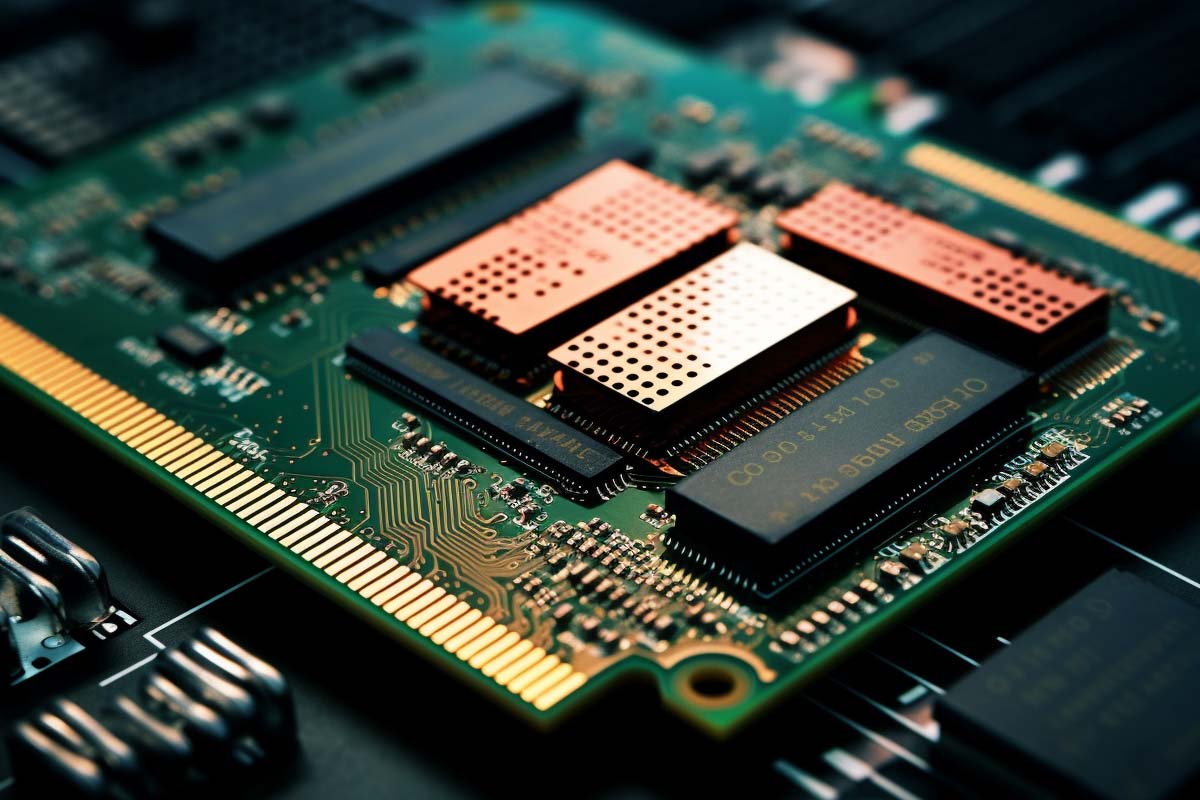
RAM is often the first place to look when a PC feels slow, but most people check the CPU or SSD first. If your apps lag when switching windows, browser tabs crawl, or the system starts thrashing the disk the moment you open a few programs, memory capacity or compatibility may be the real bottleneck.
CompTIA A+ Certification 220-1201 & 220-1202 Training
Master essential IT skills and prepare for entry-level roles with our comprehensive training designed for aspiring IT support specialists and technology professionals.
Get this course on Udemy at the lowest price →Quick Answer
RAM, including 12 gb ram, is temporary working memory that lets your CPU access active data quickly. Choosing the right module means matching DDR generation, form factor, speed, and platform support. DDR3 and DDR4 are not interchangeable, and DIMM and SODIMM are different physical types. The safest buying method is to check the motherboard or laptop memory specification before you purchase.
Quick Procedure
- Check the system manual for supported memory type, speed, and maximum capacity.
- Identify whether you need DIMM or SODIMM modules.
- Confirm the DDR generation, such as DDR3 or DDR4.
- Match capacity and speed to the platform’s supported limits.
- Choose matched modules for dual-channel performance when possible.
- Install the RAM, then verify recognition in BIOS and the operating system.
| Primary keyword | 12 gb ram |
|---|---|
| Core compatibility factors | DDR generation, DIMM or SODIMM, speed, and voltage as of August 2026 |
| Common desktop form factor | DIMM as of August 2026 |
| Common laptop form factor | SODIMM as of August 2026 |
| Typical DDR3 voltage | 1.5V, with some low-voltage variants as of August 2026 |
| Typical DDR4 speed label | 3200MHz kits are common as of August 2026 |
| Practical baseline capacity | 16GB is a common modern starting point as of August 2026 |
What RAM Does and Why It Matters
Random Access Memory (RAM) is the short-term workspace your system uses for active tasks. The operating system loads running applications, browser tabs, open documents, and temporary data into RAM because the CPU can reach it far faster than it can reach an SSD or hard drive. That speed difference is why a machine with enough memory feels responsive even when many applications are open.
RAM is not the same thing as storage. An SSD keeps files permanently, while RAM loses everything when power is removed, which is why it is called volatile memory. If the system runs out of RAM, it starts paging or swapping data to disk, and that is where performance drops sharply even on a fast NVMe SSD.
- Multitasking becomes smoother when the system has enough RAM to keep active apps in memory.
- Gaming benefits because textures, level data, and background services can stay loaded.
- Content creation tools such as video editors and photo editors consume large memory blocks.
- Virtual machines need dedicated memory for each guest operating system.
When memory is insufficient, the symptoms are predictable: slow app launches, laggy alt-tabbing, browser slowdowns, game stutter, and freezes during large spreadsheet or editing tasks. A system can also look “CPU-bound” when the real issue is memory pressure, because the processor keeps waiting on data that has been pushed out to disk.
Most “my PC is slow” complaints are really “my PC is out of RAM” complaints, especially when disk activity spikes the moment you open several apps.
This is why memory planning matters in practical IT work. The right upgrade can fix the problem immediately, and the wrong one can fail to boot if the platform does not support the module type, generation, or voltage.
For hands-on support work, these fundamentals map directly to the skills covered in IT support training, including the CompTIA® A+ Certification 220-1201 & 220-1202 Training path at ITU Online IT Training, where RAM troubleshooting and upgrade validation are core technician tasks.
Understanding DDR Memory Basics
DDR stands for Double Data Rate, a memory design that transfers data on both the rising and falling edges of the clock cycle. That matters because DDR memory moves more data per clock than older single-data-rate designs. The result is higher throughput, but also stricter compatibility rules between generations.
DDR3 and DDR4 may look similar at a glance, but they are not interchangeable. Each generation uses different signaling, different voltage requirements, and different slot keying so the wrong module does not fit the wrong board. If you only shop by capacity or speed, it is easy to buy memory that looks right on paper but will not work in the system.
- DDR3 is tied to older desktop and laptop platforms.
- DDR4 is the newer mainstream standard for many systems still in service.
- Speed rating is not the same thing as compatibility.
- Slot keying prevents many physical mismatches, but not every buying mistake.
A label such as 2133MHz DDR3 or 3200MHz DDR4 tells you the rated operating speed, not the whole story. The motherboard, CPU memory controller, and BIOS or UEFI firmware must all support the module for it to run properly. If they do not, the module may downclock, fail training, or not boot at all.
For reference, the official memory support guidance from Intel and platform documentation from AMD both stress that memory support is platform-specific, not just module-specific. That is the rule to keep in mind before buying any upgrade.
DDR3 Explained
DDR3 is a mature memory generation still found in older desktops, laptops, and refurbished business systems. It remains useful when the machine is otherwise serviceable and the motherboard explicitly supports DDR3. In those cases, a memory upgrade can extend the life of the system without replacing the entire device.
Many DDR3 modules are associated with 1.5V operation, while some lower-voltage variants exist for energy savings and platform compatibility. That distinction matters because voltage support is part of the platform design. A module with the right capacity but the wrong electrical profile can be useless in a given system.
The search phrase 2133MHz DDR3 appears often because users assume the frequency label alone defines compatibility. It does not. A DDR3 kit rated at 2133MHz may still require the motherboard to support XMP or a similar memory profile, and many older boards will run it at a lower official speed instead.
Where DDR3 Still Shows Up
DDR3 remains common in office desktops, older gaming rigs, and legacy business machines that have not yet been retired. These systems often need a practical upgrade path rather than a full replacement. If the existing machine only feels slow because it has too little memory, adding the right DDR3 kit can be a smart stopgap.
- Office PCs that run email, browser-based tools, and document apps.
- Older gaming systems that still meet basic frame-rate needs.
- Refurbished laptops used for light productivity and remote access.
There are limits, though. DDR3 platforms usually support lower maximum capacities than newer systems, and BIOS constraints can prevent some high-density modules from working correctly. That is why the motherboard manual is the best source of truth, not the product listing.
If you are seeing 12 gb ram in a DDR3 machine, it often means a mixed configuration such as 8GB plus 4GB or a legacy system with nonstandard slot population. That can work, but it is not always optimal for dual-channel operation.
DDR4 Explained
DDR4 is the newer mainstream memory standard in many desktop and laptop systems. It supports higher density modules, improved power efficiency, and broader availability across consumer, business, and workstation hardware. In practical terms, that means more options when you need 16gb or 32GB upgrades.
The label 16 gb ddr4 3200mhz sodimm matters because it describes a very common laptop upgrade pattern: 16GB capacity, DDR4 generation, 3200MHz speed rating, and the smaller SODIMM form factor. That combination is useful for compact systems that need better multitasking without moving to a larger desktop platform.
DDR4’s lower-voltage design is part of why it became so widely adopted in laptops and small-form-factor PCs. Less power draw means less heat, better battery life, and easier thermal management. For mobile systems, that can make a measurable difference under sustained load.
Where DDR4 Delivers the Most Value
DDR4 matters most when workloads are memory-hungry. Gaming, editing, virtualization, browser-heavy workflows, and large datasets all benefit from higher capacity and predictable bandwidth. Faster kits can help, but only when the platform can actually run them at the rated speed.
- Gaming benefits from better bandwidth and reduced stutter in some titles.
- Editing workflows gain room for larger projects and previews.
- Virtual machines need more headroom for guest operating systems.
- Compact PCs often depend on efficient DDR4 SODIMMs.
For many users, the real question is not “How fast can I buy?” but “How much can my platform use?” A 3200MHz kit is only useful if the motherboard and CPU support that speed. Otherwise, the system may run the memory at a lower effective clock.
When people search for 16gb ddr3 versus 16 gb of ddr3 versus 16gb, they are usually trying to understand whether capacity alone is enough. It is not. Generation, voltage, and speed must match the platform first.
DIMM, SODIMM, and Memory Form Factors
DIMM is the standard full-size memory module used in desktop systems. SODIMM is the smaller form factor used in laptops, mini PCs, and many compact desktops. The two can carry similar capacities, but they are physically different and are not interchangeable.
A 16gb dimm ram module and a 16gb ddr4 3200mhz sodimm module may both be 16GB, but they fit different systems. A desktop board with DIMM slots will not accept a SODIMM, and a laptop designed for SODIMM will not accept a desktop DIMM. Capacity is only one part of the decision.
| DIMM | Full-size module for desktops and many tower systems |
|---|---|
| SODIMM | Compact module for laptops and space-constrained systems |
One of the most common mistakes is shopping by gigabytes alone. Another is confusing desktop memory with laptop memory because the speed label looks familiar. That error wastes time, and it often leads to a return that could have been avoided with one glance at the manual.
Reading the motherboard or laptop spec sheet solves most of these problems immediately. Look for the supported module type, the number of slots, maximum capacity per slot, and the supported DDR generation. If the system says SODIMM only, then a desktop DIMM is the wrong purchase no matter how attractive the price is.
Note
Form factor is a physical compatibility check, but not the only one. A module can fit the slot and still fail if the generation, voltage, or density is wrong.
How Do You Check Compatibility Before Buying RAM?
You should check the motherboard or laptop memory support list first. That is the most reliable way to confirm DDR generation, maximum capacity, supported speed, and module type before spending money. Product listings are useful, but they are not the authority for your specific system.
Official documentation from the platform vendor is the safest source. For example, motherboard and platform memory requirements are documented by vendors such as ASUS Support, GIGABYTE Support, and Dell Support. Those documents tell you exactly what the system was validated to run.
-
Identify the exact system model. Use the motherboard model, laptop service tag, or system SKU. Generic assumptions cause most RAM buying mistakes because two machines from the same brand can support different memory types.
-
Check the supported DDR generation. Confirm whether the machine uses DDR3 or DDR4. The slot notch and electrical signaling differ, so mixing generations is not practical.
-
Verify form factor. Confirm whether the machine needs DIMM or SODIMM. This prevents the most obvious mismatch and saves time before you compare speeds or capacities.
-
Review supported capacity and slot count. Look at maximum total memory, maximum per-slot memory, and the number of slots available. A system with two slots may behave very differently from one with four.
-
Check special memory requirements. Some systems support only unbuffered consumer memory, while others may support ECC or require specific density or rank configurations. If the platform does not support ECC, buying it will not improve reliability.
-
Match speed to the platform. If the board supports 2133MHz DDR3, buying a faster kit may not produce better performance. The system may downclock it, or the firmware may reject unsupported settings.
There is also a practical reason to avoid guessing: memory compatibility is determined by the whole platform, not just the module. The CPU memory controller, chipset, and BIOS or UEFI firmware all influence what actually works. That is why the official documentation matters more than a product title that says “compatible with most systems.”
Warning
Do not buy RAM based only on capacity and speed. A module can be the right size and still fail because the DDR generation, voltage, or slot type does not match the system.
What Do RAM Speed and Frequency Mean in Real Use?
Memory speed describes how quickly RAM can move data between the module and the CPU. Higher speed can improve bandwidth, but it does not guarantee dramatic everyday gains. For many users, capacity has a bigger effect on responsiveness than frequency alone.
A system moving from 8GB to 16gb often feels more responsive than a system moving from 2400MHz to 3200MHz without a capacity increase. That is because fewer page-outs to disk usually matter more than raw bandwidth in daily work. Once the system has enough headroom, then speed becomes more noticeable in certain workloads.
When Faster RAM Matters Most
Faster memory is most helpful in bandwidth-sensitive scenarios. Integrated graphics use system memory as video memory, so they benefit more from higher throughput than systems with discrete GPUs. Some games, large creative workloads, compression tasks, and data processing jobs also show measurable gains.
- Integrated graphics often benefit the most from higher memory speed.
- Content creation tools can move large data sets more efficiently.
- Gaming may see reduced frame-time spikes in specific titles.
- Virtualization benefits more from capacity, then speed.
Dual-channel operation matters here too. Two matched memory sticks can increase effective bandwidth compared with one stick of the same total capacity. That is why a pair of 8GB modules can outperform one 16GB module in some systems, especially when the workload leans on integrated graphics or memory bandwidth.
Platform limits still apply. A 3200MHz kit may run at 2933MHz or 2666MHz if the CPU or motherboard only supports those speeds. That is normal behavior, not a fault. The key is to buy memory that your platform can actually use at a stable setting.
How Much RAM Do You Actually Need?
Capacity planning is the part of RAM selection that saves the most money and frustration. The goal is not to buy the biggest number available. The goal is to buy enough memory for your workload without overspending on capacity your system will never use.
For light use such as email, web browsing, and basic documents, 8GB can still be enough. But modern browsers and background services can make that feel tight fast, especially if you keep many tabs open. For most users, 16GB is the practical baseline because it handles daily multitasking much more comfortably.
Common Capacity Targets
- 8GB for light browsing, email, and basic productivity.
- 16GB for mainstream office work, browser-heavy use, and casual gaming.
- 32GB for creative work, heavier gaming, and virtual machines.
- 64GB+ for advanced workloads, large projects, and specialized professional use.
If you are seeing 12 gb ram in a working system, that may be enough for light or moderate use, but it is often a transitional configuration rather than an ideal target. Mixed capacities can work, but they may not deliver the cleanest dual-channel setup. A matched pair is usually easier to tune and troubleshoot.
Browser tabs matter more than people expect. So do launchers, cloud sync tools, chat apps, and endpoint security software running in the background. A machine that looks fine on paper can hit memory pressure quickly once you use it the way real people do during a workday.
If your system swaps to disk every time you open a few apps, the problem is not “slow storage.” The system is simply out of RAM.
The safest rule is to buy for your next 2 to 3 years of use, not just today’s light workload. If you expect to keep the device, it is usually better to choose enough headroom now than replace the memory again later.
Single-Channel, Dual-Channel, and Memory Sticks
Single-channel means the memory controller is using one module path, while dual-channel allows the system to access two matched modules in parallel. In practice, dual-channel can improve memory bandwidth and make the system feel more responsive in certain tasks.
This is why two compatible sticks can outperform one larger stick of the same total capacity. A pair of 8GB modules may deliver better bandwidth than a single 16GB module, depending on the platform. The effect is especially noticeable on systems that use integrated graphics because those systems borrow system memory for graphics work.
Slot population matters. Many motherboards require specific slots to be filled first, often labeled A2 and B2, to enable dual-channel mode. Laptop systems are simpler, but the same principle applies when two slots are present.
- Matched modules are usually the easiest path to stable dual-channel operation.
- Mixed capacities may work, but performance can be less consistent.
- Two slots often mean a straightforward upgrade path.
- Four slots may allow more capacity, but installation order still matters.
When shopping, check whether the system has one or two upgradeable slots and whether both slots are accessible. Some laptops ship with part of the memory soldered to the board, which changes the upgrade strategy. Reading the exact model specification avoids a lot of trial and error.
In consumer systems, the most practical move is usually to buy a matched kit instead of assembling a memory configuration from random modules. That gives you better odds of stable operation and cleaner dual-channel behavior.
What About ECC and Reliability Features?
Error-Correcting Code (ECC) memory is RAM that can detect and correct certain types of memory errors. That matters in systems where data integrity is more important than low cost, such as servers, engineering workstations, and scientific computing environments.
ECC is not automatically better for every system. Support depends on both the CPU and motherboard, and many consumer desktops and laptops do not support it at all. If the platform does not support ECC, the module may not work, or the extra capability may simply be ignored.
For reliability-sensitive environments, platform documentation should come first. Official support pages from vendors such as Intel Support and Supermicro Support typically specify whether ECC is supported and under what conditions. That is the decision point, not the memory listing itself.
- Servers often use ECC to reduce the risk of silent data corruption.
- Workstations may use ECC for design, simulation, or research workloads.
- Consumer systems usually use standard non-ECC memory.
Do not assume ECC will magically improve speed. Its value is reliability, not performance. If the platform cannot use it, standard memory is the correct choice.
How Do You Install RAM Safely?
RAM installation is straightforward if you follow the physical steps carefully. Power the system down, disconnect power, and discharge any remaining electricity before touching internal components. Handle the module by the edges and avoid touching the gold contacts.
Align the notch in the module with the key in the slot, then press evenly until the retaining clips click into place. Do not force the module. If it does not seat cleanly, stop and recheck orientation, slot type, and whether you are using the correct form factor.
-
Shut down and unplug the system. For laptops, remove the battery if it is user-removable. For desktops, switch off the PSU and remove the power cable.
-
Open the access panel. Keep screws organized and note where each panel belongs. Use the system’s service manual if the memory slots are not obvious.
-
Insert the modules in the correct slots. On many motherboards, paired slots must be populated in a specific order to enable dual-channel mode. The manual will identify the preferred slots.
-
Seat the module firmly. Apply even pressure until the clips lock. A partially seated stick may appear installed but will cause boot failures or intermittent crashes.
-
Boot and verify detection. Check BIOS or UEFI first, then confirm the operating system reports the expected memory amount. If the system shows less than installed capacity, revisit the seating and slot order.
Keep the old RAM until the new configuration has been tested. If the system fails to boot, the original modules are the fastest rollback option. That saves time and reduces the risk of troubleshooting the wrong part of the system.
Pro Tip
If a new RAM kit does not work, test one module at a time in the primary slot. That isolates a bad stick, a bad slot, or a configuration problem much faster than swapping everything at once.
What Are the Most Common RAM Buying Mistakes?
The biggest RAM buying mistake is focusing on capacity and ignoring everything else. A 16GB module is useless if the system needs SODIMM, not DIMM. A fast kit is useless if the motherboard only supports a lower speed. A physically compatible stick is still wrong if the generation or voltage is off.
Another mistake is assuming “newer is better” in every case. A DDR4 module will not replace DDR3 in an older system, even if both advertise similar speeds. The generation change brings different signaling and power requirements, which is why slot keying exists in the first place.
- Ignoring generation causes outright incompatibility.
- Ignoring form factor leads to DIMM versus SODIMM mistakes.
- Ignoring platform limits leads to wasted money on unsupported speed.
- Buying the wrong memory class can prevent the system from booting.
There is also the issue of server-oriented or ECC modules being purchased for consumer systems. That happens more often than people think because the listings look attractive. If your platform does not support ECC, it is not an upgrade.
The cheapest route is usually the slowest route if it leads to a return. Checking official specs once is faster than ordering the wrong kit, waiting for delivery, and starting over. That is especially true when you are dealing with legacy systems where part compatibility is already tight.
How Do You Verify It Worked?
Verification means confirming the system sees the full installed capacity and runs stably under load. Start in BIOS or UEFI and check the reported memory total. Then confirm the operating system shows the same amount after booting.
If the system should support dual-channel, look for a dual-channel status or use a hardware information tool to confirm channel mode. If the new kit is rated for a certain speed, check whether the platform is actually running it at that speed or at a lower supported rate.
- BIOS/UEFI shows the installed capacity with no memory training errors.
- The operating system reports the expected amount under system properties.
- The machine boots repeatedly without memory-related warnings or beeps.
- Stress tests complete without crashes, freezes, or errors.
Common failure signs include repeated boot loops, “memory not detected” messages, random blue screens, or a system that only sees part of the installed memory. If that happens, reseat the modules, test one stick at a time, and confirm the slots are populated correctly. Mixed kits can work, but they are more likely to cause training issues than matched modules.
For deeper validation, many technicians run a memory test after installation. On Windows, Windows Memory Diagnostic is a simple first check, and advanced users often use MemTest86 for more thorough testing. Stable detection plus clean test results is the standard you want before calling the upgrade complete.
Key Takeaway
RAM upgrades succeed when the module type, DDR generation, speed, voltage, and capacity all match the platform. Capacity alone is not enough.
DDR3 and DDR4 are not interchangeable, even when the frequency label looks similar.
DIMM is for desktops and SODIMM is for laptops and compact systems.
Dual-channel memory can improve bandwidth, especially on systems with integrated graphics.
Checking the official manual is faster than guessing and safer than returning the wrong part.
CompTIA A+ Certification 220-1201 & 220-1202 Training
Master essential IT skills and prepare for entry-level roles with our comprehensive training designed for aspiring IT support specialists and technology professionals.
Get this course on Udemy at the lowest price →Conclusion
Choosing the right RAM comes down to matching the platform, not chasing the biggest number on a product page. The most important checks are DDR generation, form factor, supported speed, and total capacity. Once those line up, upgrading memory becomes one of the most practical ways to improve responsiveness, reduce swapping, and make an older system feel usable again.
DDR3 and DDR4 solve the same basic problem in different generations, and DIMM and SODIMM exist for different physical spaces. If you remember those two distinctions, you will avoid most of the expensive mistakes people make when buying memory. The rest is just reading the manual and choosing the capacity that fits the workload.
Your next step is simple: check the motherboard or laptop documentation, confirm the supported module type and memory speed, then buy the right kit for how you actually use the system. If you want more hands-on guidance on hardware troubleshooting and upgrade planning, ITU Online IT Training covers the practical skills technicians use every day to make those decisions with confidence.
CompTIA® and A+™ are trademarks of CompTIA, Inc.
