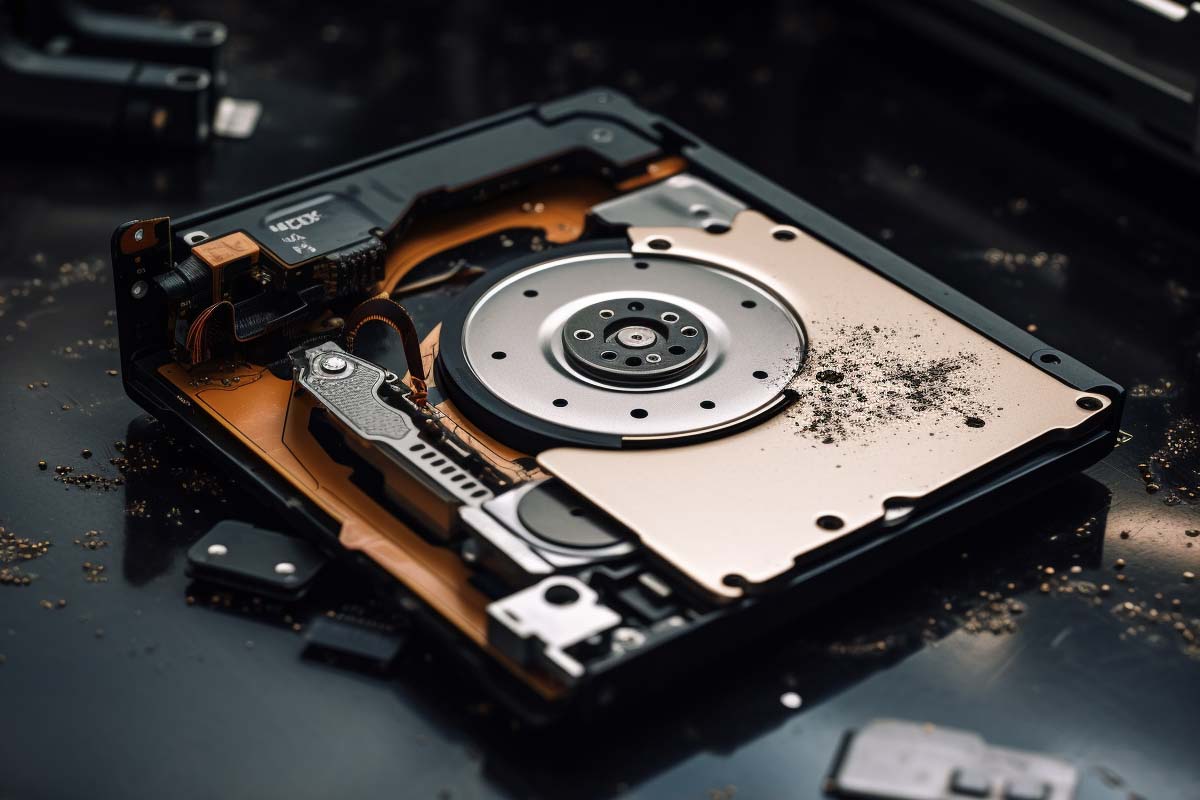
Addressing Hard Drive Failures: A Practical Guide for IT Professionals
When a hard drive begins to malfunction, it’s more than just a hardware hiccup—it’s a threat to critical data and system uptime. Hard drive failures are among the most common causes of data loss and unplanned downtime in any IT environment. Recognizing the warning signs early and understanding the root causes can make the difference between a quick fix and complete data recovery chaos.
This guide provides a detailed, step-by-step approach for diagnosing, troubleshooting, and resolving hard drive issues efficiently. Whether you’re dealing with traditional spinning disks (HDDs) or solid-state drives (SSDs), mastering these techniques can save time, reduce costs, and help maintain system stability.
Understanding Hard Drive Failures: Causes and Symptoms
What causes hard drives to fail?
Hard drives are complex devices exposed to physical and software-related stresses. Understanding these causes helps in pinpointing failures accurately. Here are the most common culprits:
- Mechanical wear and tear: HDDs contain spinning platters and read/write heads. Over time, friction and mechanical fatigue can lead to component degradation, resulting in failure.
- Heat damage: Excessive heat accelerates wear on electronic components. Poor airflow or high ambient temperatures can cause drives to overheat, leading to potential malfunction.
- Electrical faults and power surges: Sudden voltage spikes can fry circuit boards or damage internal components, especially if proper surge protection isn’t in place.
- Physical impacts: Dropping a laptop or knocking over a desktop can cause immediate damage—bad sectors, head crashes, or disconnections.
- Data corruption: Malware, improper shutdowns, or software conflicts can corrupt filesystem data, mimicking hardware failure symptoms.
Recognizing signs of impending failure
A key skill for IT professionals is early detection. Monitoring both physical and software indicators helps prevent total data loss. Here are typical symptoms:
Pro Tip: Regularly using diagnostic tools to monitor drive health can provide early warnings of failure, saving valuable data and reducing downtime.
Physical signs
- Unusual noises: Clicking, grinding, or screeching sounds from HDDs point to mechanical issues or head failures.
- Overheating: Drives that feel abnormally warm suggest overheating or impending component failure.
- Visible damage: Cracks, burns, or loose cables are immediate red flags that demand physical inspection.
Software signs
- Frequent errors: Errors during file access, read/write operations, or boot failures indicate underlying issues.
- Sluggish performance: Slow data access and system responsiveness point to drive deterioration.
- Data inconsistencies: Missing, corrupted, or inaccessible files suggest logical errors or hardware degradation.
Effective Diagnosis: Tools and Techniques
Diagnostic tools every IT professional should know
Accurate diagnostics rely on specific tools that reveal drive health status and surface conditions. Here are the most widely used:
- CrystalDiskInfo: Free, user-friendly utility that reads SMART data and provides a quick health overview for HDDs and SSDs.
- HDDScan: Offers surface tests, temperature monitoring, and detailed diagnostics for deeper insights.
- Manufacturer-specific utilities: Many drive manufacturers like Western Digital, Seagate, and Samsung provide proprietary tools for in-depth testing.
Understanding SMART data is crucial—it’s your early warning system about potential drive failure.
Step-by-step diagnostics process
- Run comprehensive diagnostics: Use the above tools to analyze SMART attributes, surface integrity, and temperature.
- Check SMART parameters: Focus on reallocated sectors, pending sectors, and read error rates to assess drive health.
- Physically inspect the drive: Look for signs of overheating, physical damage, or loose cables.
- Prioritize data backup: If diagnostics indicate potential failure, secure critical data immediately before proceeding with further troubleshooting.
Troubleshooting and Repair Strategies
Basic troubleshooting steps
Start with simple measures that often resolve logical errors or improve drive performance:
- Back up data immediately: Prevent data loss by copying important files to external storage or cloud services.
- Run disk utility checks: Use CHKDSK on Windows or Disk Utility on Mac to repair filesystem errors.
- Optimize cooling: Ensure adequate airflow around the drive to prevent heat-induced failures.
Advanced troubleshooting and repair options
If the basic steps don’t resolve issues, more in-depth actions are necessary:
- Data recovery services: For drives with severe physical damage, professional recovery can salvage critical data.
- Drive replacement: Diagnostics confirming hardware failure should prompt immediate drive replacement to prevent data loss.
- Monitoring post-repair: Use diagnostic tools regularly to track the health of the new or repaired drive, catching potential issues early.
Pro Tip: Regular diagnostics and proactive monitoring can detect issues before they escalate into catastrophic failures.
Preventing Hard Drive Failures: Best Practices
Routine maintenance essentials
- Automated backups: Implement backup solutions like cloud storage or external drives to secure data against sudden failures.
- Health monitoring: Use tools such as CrystalDiskInfo or vendor utilities for real-time health checks.
- Environmental controls: Keep drives in cool, vibration-free environments to extend their operational lifespan.
Hardware and environmental considerations
- Choose quality drives: Invest in reputable brands with proven durability and warranty support.
- Ensure proper cooling: Use case fans or airflow management to prevent heat buildup.
- Protect against shocks: Secure drives inside stable enclosures, minimizing physical impacts during operation.
Pro Tip
Implement the 3-2-1 backup rule: keep three copies of data, on two different media, with one off-site copy for maximum protection.
When to Call in the Pros
Some issues demand professional intervention. Know when DIY troubleshooting hits its limit:
- Persistent problems: Troubleshooting repeatedly fails to resolve issues.
- Severe physical damage: Signs of head crashes, burns, or corrosion require expert repair.
- Severe data loss: When data recovery exceeds DIY capabilities, professional services are essential.
- Uncertainty about hardware diagnosis: Avoid guesswork—consult certified technicians or authorized service providers.
Warning
Attempting to repair physically damaged drives without proper tools can cause irreversible data loss. When in doubt, seek professional help.
Final Tips for Hard Drive Troubleshooting
Early detection and preventive care are your best defenses against hard drive failure. Keep an eye on signs like strange noises or slow performance, and act swiftly to backup data and run diagnostics. Regular maintenance—like firmware updates, environmental controls, and routine health checks—can extend drive lifespan and prevent unexpected failures.
For IT professionals aiming to sharpen their troubleshooting skills, ITU Online Training offers comprehensive courses covering hardware diagnostics and repair techniques. Staying informed and prepared ensures your systems stay resilient against hardware failures.
Pro Tip
Continuously educate yourself on the latest storage technologies and diagnostic tools to stay ahead of potential hardware issues.
