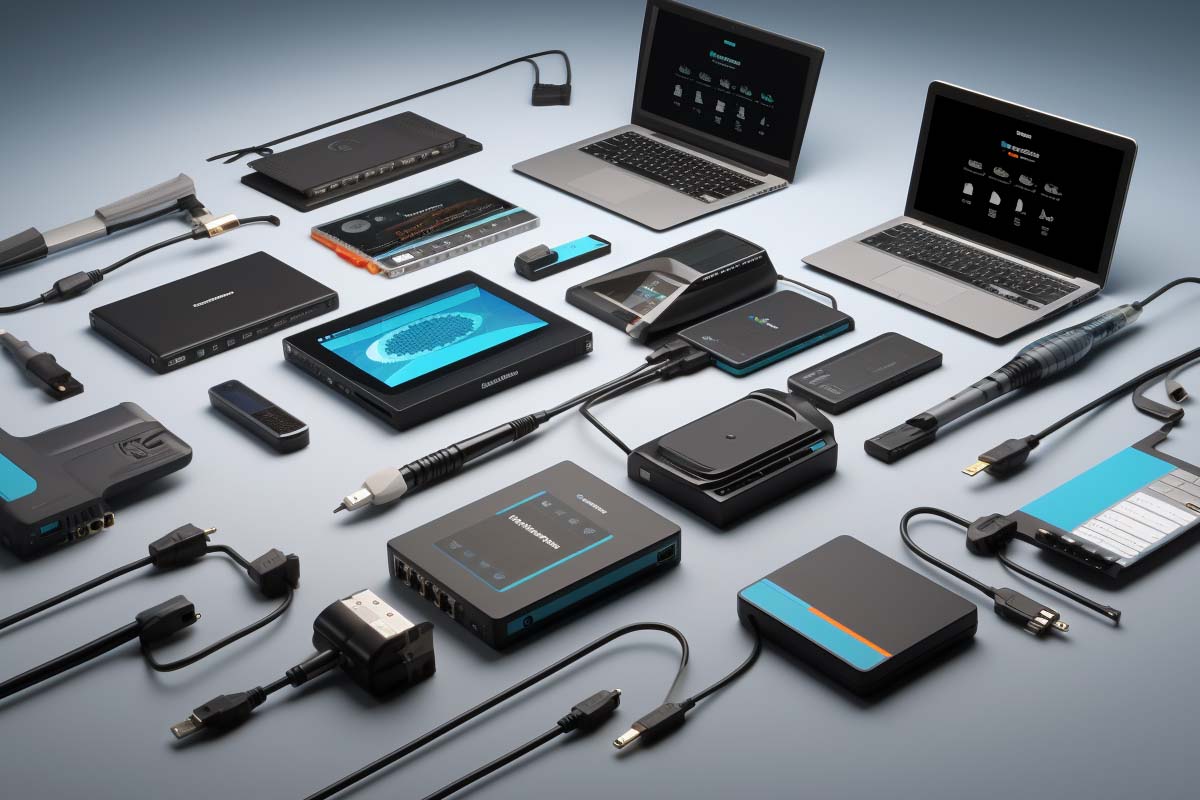
When all peripherals stopped working, the problem is not always the keyboard, mouse, printer, or monitor. In many cases, the failure sits in the driver, port, power path, dock, or operating system settings.
CompTIA A+ Certification 220-1201 & 220-1202 Training
Master essential IT skills and prepare for entry-level roles with our comprehensive training designed for aspiring IT support specialists and technology professionals.
Get this course on Udemy at the lowest price →This guide shows you how to identify the real cause, fix common peripheral failures, and prevent repeat problems. The same troubleshooting method applies whether you are dealing with a USB keyboard, a Bluetooth mouse, a network printer, or a display adapter.
Understanding Peripheral Failures
A peripheral is any external device that connects to a computer to add input, output, or storage functions. Common examples include keyboards, mice, printers, scanners, monitors, headsets, webcams, external drives, and docking stations. These devices are not part of the system board or CPU, but they can still fail in ways that look like a full computer problem.
Peripheral failures happen in three places: the device itself, the connection path, or the software environment controlling it. That is why a keyboard may appear dead even when it works perfectly on another PC, or a printer may show online but refuse to print because the queue, driver, or spooler is broken.
What Peripheral Failures Look Like
- Complete non-response: No input, no output, or no detection at all.
- Intermittent behavior: Devices disconnect, reconnect, or work only some of the time.
- Degraded performance: Slow response, lag, stuttering, or poor print quality.
- Compatibility issues: A new device works poorly or not at all on an older system.
Correct identification matters because replacing the wrong part wastes time and money. A “dead” mouse may need a new battery, a different USB port, or a driver reset. The same logic is used in CompTIA A+ style troubleshooting: isolate the layer that is failing before replacing hardware.
Good troubleshooting starts with the simplest explanation first. If a peripheral stops working, do not assume the device is bad until you have checked power, cabling, ports, drivers, and device settings.
For support teams, this is also a documentation issue. Recording what failed, when it failed, and what changed before the issue started makes the next troubleshooting pass much faster. ITU Online IT Training teaches this kind of structured approach because it applies across nearly every desktop support scenario.
Common Causes of Peripheral Failures
Most peripheral problems fall into a few predictable categories. The fastest path to a fix is to match the symptom to the likely cause instead of randomly swapping parts. That is especially useful when all peripherals stopped working after a driver update, dock change, or operating system patch.
Driver and Software Problems
Drivers translate operating system commands into device-specific actions. If the driver is missing, outdated, corrupt, or incompatible, the hardware may still be physically connected but function poorly or not at all. This is a common cause of printer failures, monitor detection issues, and specialized input devices that depend on vendor software.
Examples include a keyboard that types in the login screen but stops responding inside a remote session, or a printer that shows as installed but never receives jobs. These issues often appear in Device Manager, Bluetooth settings, or printer queues as warnings, conflicts, or missing components. Microsoft documents these detection and management tools in Microsoft Learn.
Connectivity and Power Issues
Loose cables, damaged ports, unstable wireless pairing, and underpowered hubs create many of the most frustrating failures. USB devices can disconnect if a port is worn, a hub is unpowered, or the cable is failing internally. Wireless devices may fail because of dead batteries, signal interference, or a broken pairing record.
Power is often overlooked. Some peripherals draw enough current that a weak USB port or cheap hub cannot keep them stable. High-draw devices, docking stations, and multi-function printers are especially sensitive to this. If a device flickers, resets, or drops off the system during use, treat power delivery as a prime suspect.
Wear, Damage, and Compatibility
Regular use eventually wears out buttons, switches, hinges, connectors, and cables. A mouse wheel may skip. A keyboard key may feel mushy. A monitor cable may show a dead pin or loose connector. Age alone can create symptoms that look like software trouble.
Compatibility also matters. New peripherals may depend on firmware, USB versions, display standards, or operating system support that an older machine does not provide. In some cases, the device is fine, but the feature set is simply too new for the host computer.
Note
When troubleshooting, always ask one question first: is the device failing, or is the computer failing to manage the device correctly? That distinction prevents most unnecessary replacements.
Recognizing the Symptoms of Peripheral Failure
Peripheral symptoms usually fall into physical signs, response failures, intermittent errors, or software alerts. Spotting the pattern early helps narrow the cause. A keyboard that works at startup but fails in one application points somewhere different from a keyboard that never registers input anywhere.
Physical Signs to Check
- Frayed, cut, or twisted cables
- Bent USB, video, or audio connectors
- Loose ports that shift when touched
- Burn marks, cracks, or liquid damage
- Debris under keys or around moving parts
These signs matter because visible damage often confirms the failure path. A bent connector or loose port can create intermittent behavior long before the device fails completely. The same is true for peripherals affected by dust buildup or spilled liquids.
Behavioral Symptoms
Some failures are obvious. A keyboard does not type. A mouse pointer does not move. A printer does not print. Other failures are more subtle, such as delayed keystrokes, random disconnects, flickering displays, or pages that print with missing lines.
Software indicators are equally useful. Warning icons in Device Manager, connection notifications, driver alerts, or repeated device disconnect sounds all point to a system-level issue. If the same problem only appears in one application or under heavy workload, the cause may be configuration, performance, or compatibility rather than hardware failure.
If the symptom changes when you change the port, cable, or computer, the original hardware is not always the root cause.
This is where a lot of technicians make mistakes. They replace a keyboard because it appears dead, when the real problem is a bad USB hub or disabled input driver. That is why symptom recognition must lead into isolation testing, not replacement.
Basic Diagnostic Checks
Start with the simplest checks first. Most peripheral failures can be narrowed down in minutes if you use a consistent process. The goal is to determine whether the device has power, whether the computer sees it, and whether the problem is isolated to one peripheral or affects several.
Quick Physical Checks
- Inspect the device for visible damage.
- Check the cable, connector, and port for looseness.
- Verify any power light, status LED, or display indicator.
- Test the peripheral on a different port.
- Restart the computer and retest.
These steps remove a large number of false alarms. For example, a USB mouse that seems dead may work immediately after moving it from a front panel port to a rear motherboard port. A printer that appears offline may only need a cable reseat or power cycle.
Scope the Failure
Ask whether the issue affects one device or multiple peripherals. If a keyboard, mouse, and headset all fail at the same time, the shared factor is more likely the USB controller, dock, hub, or operating system. If only one device fails, the cause is probably local to that device or its cable.
A restart is also worth doing before deeper work. Temporary system glitches, hung driver states, and USB controller stalls often clear after reboot. If the failure returns after restart, you have a stronger case for deeper software or hardware investigation.
Pro Tip
When multiple peripherals fail at once, look for the shared dependency first: USB hub, dock, Bluetooth adapter, power strip, or driver stack. The common factor is usually the best clue.
Using Built-In Diagnostic Tools
Built-in tools help answer the key question: does the operating system detect the peripheral, and if so, is it controlling it correctly? On Windows systems, Device Manager is the first stop because it can show missing drivers, warning icons, disabled devices, and resource conflicts. Microsoft’s official documentation for device and driver management is available through Microsoft Learn.
What to Look For in Windows
- Yellow warning icons on the device entry
- Unknown device labels
- Disabled hardware entries
- Driver version or status details
- Events or problem codes on the device properties page
For printers, displays, and Bluetooth devices, the operating system settings panels can show whether the device is paired, installed, defaulted, or stuck in an error state. If the computer detects the peripheral but the peripheral still does not work, the problem is often software control rather than detection.
Mac and Log-Based Checks
On macOS, the System Information app and device-related settings can show whether the system sees a connected accessory. Event logs, system reports, and device status messages can provide useful details when a failure is persistent or hard to reproduce. The same principle applies across platforms: detection first, functionality second.
That is why built-in tools are valuable in support work. They separate hardware detection problems from hardware control problems. A device that appears in the system inventory is not necessarily functioning correctly, but at least you know the connection path is partly working.
Isolating the Source of the Problem
Isolation testing is the fastest way to avoid guessing. The rule is simple: change one thing at a time and observe the result. If a peripheral works on one machine but not another, the device is probably fine and the host system is the issue.
Use Cross-Testing to Narrow It Down
- Test the suspect peripheral on another computer.
- Test a known-good peripheral on the affected computer.
- Swap the cable, adapter, or dock.
- For wireless devices, replace batteries and re-pair.
- Retest after each change.
This method is especially important with USB-C docks, KVM switches, and display adapters. A bad dock can make it look like multiple peripherals have failed when the dock is the real problem. The same pattern is common with damaged USB cables and cheap adapters that do not pass power or data reliably.
Wireless peripherals need extra attention. Low batteries, signal interference, and stale pairings can create symptoms that look like hardware failure. If a wireless mouse disconnects often, test with fresh batteries, remove the old pairing, and reconnect it to the host system.
| If the device works elsewhere | The computer, port, driver, dock, or configuration is the likely cause. |
| If the device fails everywhere | The peripheral itself is likely faulty. |
That is the core value of isolation testing. It saves time, reduces unnecessary replacement, and gives you a defensible troubleshooting record. For support teams handling repeated tickets, this is one of the most important habits to build.
Fixing Driver and Software Problems
When a device is detected but not functioning correctly, driver and software repair should be one of the first corrective actions. This is especially true for printers, drawing tablets, multifunction devices, monitors with special control software, and other peripherals that rely on vendor packages.
Practical Driver Fixes
- Reinstall the driver if the device is detected but unusable.
- Update to the latest supported driver version.
- Remove and rediscover the device to clear stale entries.
- Check for operating system updates that restore compatibility.
- Use manufacturer software only when needed for special features.
In many Windows cases, uninstalling the device from Device Manager and then rescanning hardware is enough to rebuild the driver chain. For printers, clearing the print queue and restarting the print spooler can also restore normal operation. If the device is part of a managed environment, verify whether policy settings are overriding local controls.
When Software Is the Real Problem
Some peripherals fail because the software around them is outdated or misconfigured. A display may be connected and powered, but a wrong resolution setting makes it unusable. A printer may be online, but the selected default printer is incorrect. A headset may be paired, but the wrong audio profile is selected.
In other words, the peripheral is not always broken. Sometimes the operating system is simply pointing to the wrong control path. That is why software troubleshooting belongs near the top of the process, not at the end.
For structured reference on device handling and OS support, vendor documentation such as Microsoft Support and official hardware guidance from device manufacturers are the best sources. Avoid relying on guesswork when the fix is usually a known setting or supported driver version.
Repairing Connectivity and Power Issues
Connectivity problems are among the most common reasons peripherals fail. A device can be perfectly functional and still appear broken if the cable, port, power source, or adapter is unstable. This is where physical inspection pays off.
What to Inspect First
- Cables for cuts, crimps, and internal wear
- Ports for looseness, bent pins, or debris
- Adapters for heat, damage, or poor seating
- Power bricks and charging cables for output problems
- Wireless receivers for proper insertion and positioning
If a connection feels loose, replace the cable or adapter instead of trying to force it. Intermittent contact creates repeated disconnects that can corrupt jobs, interrupt input, or damage ports over time. For printers and docking stations, power problems often show up as random resets, partial initialization, or devices that vanish during use.
Power Stability Matters
Some devices require more stable power than a laptop port or passive hub can provide. In those cases, use a powered hub or the device’s own external power supply. If a battery-powered device is draining quickly or failing under load, test the battery condition and replace or recharge it before chasing deeper issues.
Hardware vendors and platform documentation from sources like Cisco® and CompTIA® consistently emphasize verifying the basic physical layer first. That advice is practical here: power and connectivity problems are often mistaken for software failure.
Handling Physical Wear and Hardware Damage
Peripheral hardware wears out. That is not unusual; it is expected. Key switches fail after repeated presses, mouse buttons lose tactility, printer rollers wear, monitor cables loosen, and ports become unreliable after years of plug-and-unplug cycles.
Common Signs of Mechanical Failure
Look for sticky keys, double-click issues, dead zones, squeaky fans in powered peripherals, or display sections that flicker or darken. A keyboard with several dead keys may have liquid intrusion or switch failure. A mouse that registers clicks inconsistently may need replacement if cleaning does not help.
Cleaning can solve a surprising number of problems. Dust, crumbs, and buildup around keys or vents can affect movement and heat dissipation. Use appropriate cleaning methods for the device type, and avoid solvents or aggressive tools that can damage plastic, coatings, or internal electronics.
Repair or Replace?
Use repair when the device is expensive, under warranty, or mission-critical. Replace when labor, downtime, and parts exceed the value of the hardware. A high-end monitor or specialized printer may justify repair. A low-cost keyboard that has multiple failing keys usually does not.
That judgment call is practical, not emotional. If the repair will take longer than replacing the part, and the replacement is readily available, replacement is often the better business decision. Document the failure so patterns can be tracked across similar devices.
Warning
Do not keep using a physically damaged peripheral if it is creating intermittent shorts, overheating, or repeated disconnects. Continued use can damage the host port or create additional failures.
Dealing With Compatibility and Configuration Problems
Compatibility failures are common when newer peripherals are connected to older systems. A device may technically plug in, but still lack the required driver, interface support, or firmware compatibility to function correctly. This is where “it should work” causes trouble.
Check the Support Matrix
Confirm that the peripheral supports the operating system, hardware interface, and required software version. Some advanced mice, headsets, and printers need vendor software to expose full features. Others work in basic mode but lose functionality because the host OS does not support special buttons, high-resolution display modes, or advanced management tools.
- Display problems: Wrong resolution, refresh rate, or adapter type
- Input problems: Incorrect key mapping or missing macro support
- Printer problems: Wrong driver, wrong queue, or missing device profile
- Docking issues: Limited bandwidth or unsupported power negotiation
Configuration matters just as much as compatibility. A printer can be set to offline mode. A display can be detected on the wrong output. A multifunction device can be configured for the wrong paper size or default behavior. These issues often look like failure when they are really misconfiguration.
Update Firmware and Settings
If the manufacturer provides firmware updates, apply them carefully and only from trusted official sources. Firmware can fix stability issues, improve compatibility, and resolve known defects. For some peripherals, a factory reset also clears bad settings that keep the device from behaving correctly.
When you see recurring issues that only affect one app or one device model, check the release notes and compatibility guidance from the vendor. That kind of verification is often faster than trial and error.
Advanced Troubleshooting and Repair Options
When basic steps do not work, move into advanced repair options. This stage is for cases where the peripheral is important enough to justify more time, or where the configuration is complicated enough that a simple reset will not help.
Use Firmware and Factory Reset Options
Many modern printers, monitors, and docking devices have internal firmware that controls features and stability. Updating that firmware can resolve problems that driver reinstallations cannot. A factory reset can also clear corrupted configuration data and restore a baseline state.
Be careful with firmware updates. Use the official vendor package, confirm model compatibility, and avoid interrupting power during the process. A bad firmware update can turn a manageable problem into a permanent failure.
Decide When to Escalate
Consider professional repair when the device is expensive, under warranty, or tied to business-critical work. For example, a specialized label printer in a shipping environment may justify repair because downtime costs more than the hardware itself. The same applies to high-end display gear or equipment with custom enterprise drivers.
Use cost comparison, not instinct. Include labor, replacement lead time, downtime, and user impact. If the device is cheap and widely available, replacement often makes more sense than repair. If the device is unique or operationally important, escalation is usually worth it.
Advanced troubleshooting is not about trying every fix. It is about choosing the next most likely action based on evidence, device behavior, and business impact.
Document every step. That record helps if the issue returns, if warranty support is needed, or if multiple users report the same failure pattern.
Preventing Future Peripheral Failures
Preventive maintenance is the easiest way to reduce peripheral failures. Most device problems come from dirt, strain, old drivers, poor handling, or power issues that could have been caught earlier. A little routine care goes a long way.
Practical Prevention Habits
- Clean keyboards, mice, monitors, and printers on a schedule.
- Use cable management to reduce bends, pulling, and accidental unplugging.
- Keep drivers, firmware, and supporting software updated.
- Store devices in dry, dust-free conditions.
- Test critical peripherals before important work sessions.
Clean equipment performs better and lasts longer. Cable strain relief reduces connector wear. Regular driver and firmware maintenance prevents compatibility drift after OS updates. None of these tasks are complicated, but together they reduce the most common support tickets.
Periodic testing is especially useful in shared workspaces, conference rooms, and field environments. A device that is only used occasionally can fail silently until the first time it is needed. Catching that problem early avoids downtime later.
Key Takeaway
The cheapest fix is prevention. Clean devices, stable power, updated drivers, and good cable handling prevent many of the peripheral failures that look like major hardware problems.
CompTIA A+ Certification 220-1201 & 220-1202 Training
Master essential IT skills and prepare for entry-level roles with our comprehensive training designed for aspiring IT support specialists and technology professionals.
Get this course on Udemy at the lowest price →Conclusion
Peripheral failures are easier to resolve when you use a systematic troubleshooting process. Start with the symptom, check power and connectivity, verify detection in the operating system, isolate the device from the computer, and then decide whether the fix is software, hardware, or replacement.
That approach works for keyboards, mice, printers, monitors, docks, and many other connected devices. It also prevents the most common mistake in support work: replacing hardware before proving that hardware is actually the problem. In many cases, all peripherals stopped working because of a port issue, driver conflict, power loss, or configuration error that can be corrected quickly.
If you are building support skills, this is exactly the kind of workflow covered in CompTIA A+ Certification 220-1201 & 220-1202 Training from ITU Online IT Training. The ability to isolate, test, and document peripheral failures is a core desktop support skill that saves time in real environments.
Use the same pattern every time: identify the symptom, isolate the cause, apply the smallest fix that makes sense, and prevent the issue from returning. That is how you solve peripheral problems without replacing the entire computer.
CompTIA® and A+™ are trademarks of CompTIA, Inc.