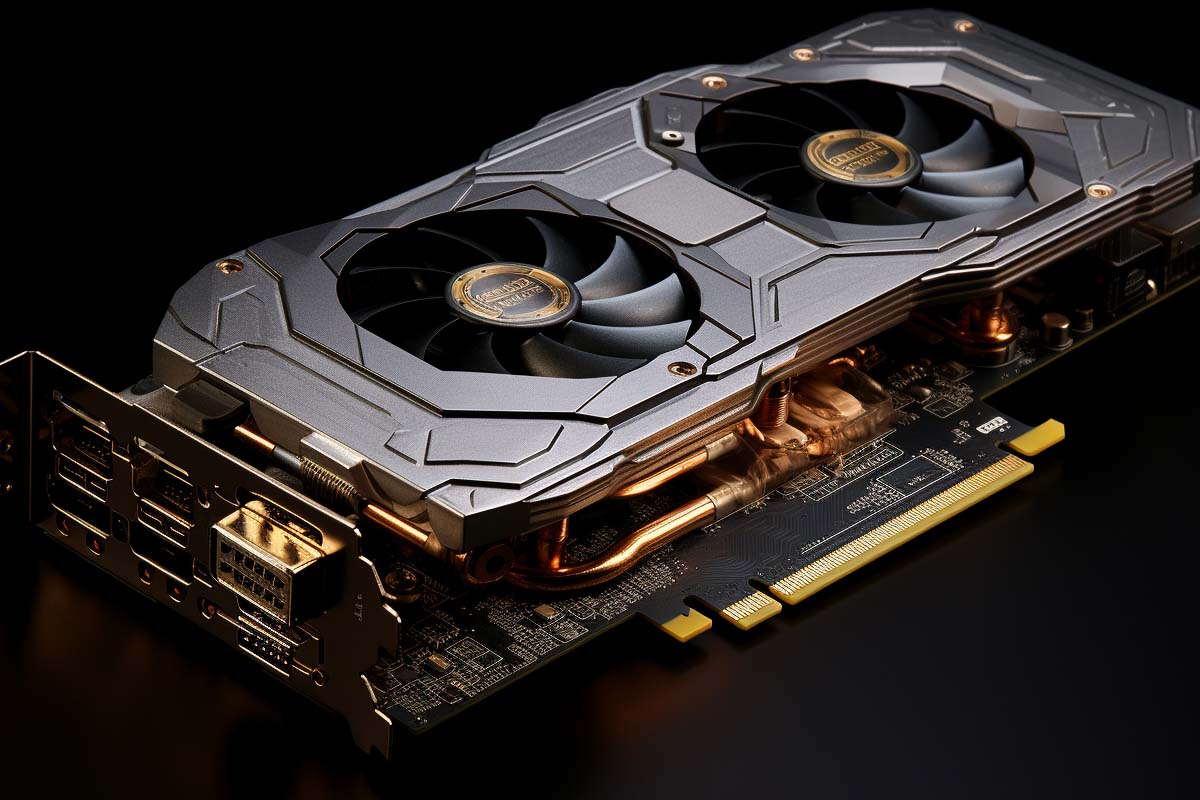
When a PC suddenly shows artifacts, black screens, or random crashes, the first question is simple: is this a software issue, or is the graphics card actually failing? GPU failure symptoms are easy to misread because they often look like a bad monitor, a Windows problem, a driver bug, or a weak power supply. This guide gives you a practical way to separate those possibilities so you can fix the real problem instead of replacing parts by guesswork.
CompTIA A+ Certification 220-1201 & 220-1202 Training
Master essential IT skills and prepare for entry-level roles with our comprehensive training designed for aspiring IT support specialists and technology professionals.
Get this course on Udemy at the lowest price →Quick Answer
GPU failure symptoms include screen artifacts, black screens, driver crashes, stuttering, and instability under load. The fastest way to troubleshoot is to rule out cables, monitors, and drivers first, then check temperatures, power delivery, and PCIe seating. If the problem repeats across clean software installs and another system, the graphics card is likely failing.
Quick Procedure
- Verify the monitor, cable, and input source.
- Reseat the graphics card and PCIe power connectors.
- Remove old drivers and install a clean graphics driver.
- Check temperatures, fan operation, and airflow.
- Run a stress test and watch for artifacting or shutdowns.
- Test the GPU in another system, or test another GPU in your system.
- Replace the GPU only if the failure repeats under clean conditions.
| What you are diagnosing | Graphics card failure symptoms and related system issues |
|---|---|
| Common tools | Device Manager, Event Viewer, GPU-Z, stress tests, alternate monitor/cable |
| Best first checks | Display cable, monitor input, PCIe seating, driver cleanup |
| Typical failure patterns | Artifacts, black screens, crashes under load, fan or overheating problems |
| Most common false cause | Outdated or corrupted driver software |
| Most common hardware cause | Heat, power delivery issues, or a poorly seated card in the PCIe slot |
| When to replace | When repeatable failures continue after clean software and power checks |
Understanding What a Graphics Card Does and How Failures Show Up
A graphics processing unit (GPU) is the part of the system that renders images, accelerates visual workloads, and sends video output to the display. It does far more than push game frames. It also helps with hardware acceleration in video playback, conferencing, browser rendering, CAD, video editing, and multi-monitor support.
That is why GPU failure symptoms can affect a gamer, a video editor, and an office user in very different ways. A creator may notice export errors in Adobe Premiere Pro, while an office user may only see app freezes in Teams, Chrome, or a browser using hardware acceleration. The issue is the same layer of hardware, but the visible symptom changes with the workload.
A one-time glitch is not the same as a repeatable failure pattern. A single screen flash may come from a driver hiccup or a loose cable. Repeated artifacts after warm-up, crashes only during load, and video loss that returns after a reboot point much more strongly toward hardware trouble.
A graphics card rarely “dies” in one clean moment. More often, it gets noisy, unstable, and harder to trust before it finally fails.
For IT support work, this distinction matters because graphics issues can masquerade as operating system errors, monitor defects, or even a bad Power Supply. The right first step is always to check both the software layer and the physical layer before concluding the card is dead.
Note
CompTIA® A+ material aligns well with this kind of troubleshooting because the same symptoms can point to display hardware, drivers, power, or cooling. ITU Online IT Training’s CompTIA A+ Certification 220-1201 & 220-1202 Training is especially useful for building that diagnostic habit.
What Are the Common Symptoms of Graphics Card Not Fully Seated in PCIe Slot?
A graphics card that is not fully seated in the PCIe slot often causes intermittent video loss, boot problems, and random instability rather than a complete and obvious failure. The card may work for a while, then fail when the case flexes, the machine warms up, or the PCIe power cable shifts. That makes this one of the most common causes of confusing gpu failure symptoms.
The signs are usually ugly but inconsistent. You may see a “no signal” message, a black screen after the Windows logo, or a system that boots only when the case is nudged. In some systems, the machine powers on, fans spin, and the monitor never wakes up because the card is making partial contact.
Common signs of a poorly seated card include:
- Intermittent no display after cold boot or restart.
- Random crashes when the case is moved or bumped.
- Display dropout that comes and goes without warning.
- Failure only on one slot if the card is slightly misaligned.
- PCIe power instability if the cable or connector is also loose.
When people search for what are common symptoms of a graphics card not fully seated in pcie slot, they are usually dealing with one of two problems: the card is not locked into the slot, or the latch is engaged but the bracket is not aligned with the case. A reseat fixes both in minutes. A badly seated card can also create weird behavior that looks like a dead graphics card symptoms case, so always check physical installation before assuming the GPU is bad.
Vendor installation guidance and motherboard manuals are the right references for confirming proper seating, latch engagement, and power connection order. If you see repeated boot failure after a hardware move, inspect the slot closely before doing anything else.
Common Symptoms of Graphics Card Failure
The most recognizable GPU failure symptoms are visual artifacts, black screens, and crashes under load. Artifacting often shows up as random colored pixels, jagged lines, checkerboard patterns, or distorted textures that should be flat and stable. If the artifacts appear across multiple apps and survive driver changes, the issue is much more likely to be hardware.
Black screen failures are just as important. A system may boot, but the monitor says “no signal” after login, during game launch, or when switching display modes. In other cases, the desktop appears for a moment and then the signal drops as soon as the GPU begins to render more aggressively.
Symptoms that usually point to GPU trouble
- Screen artifacts such as colored blocks, flashing lines, or corrupted textures.
- Flickering during video playback, browser use, or gaming.
- Black screens or display loss under load.
- Driver resets that force the screen to recover temporarily.
- Sudden restarts when the card is drawing more power.
- Lower-than-normal frame rates caused by thermal throttling or power limits.
- Fan failure, grinding sounds, or fans that never ramp up.
Timing matters. Failures that happen only after 10 to 20 minutes of gaming or rendering often point to heat, power delivery, or VRAM instability. Failures that appear the moment the desktop loads can point to drivers, but they can also indicate a card that is failing to initialize properly.
Look for signs across workloads. A workstation that freezes in CAD, a streaming PC that drops frames during encoding, and a gaming rig that artifacts in every title may all be showing the same underlying hardware problem. The difference is just where the GPU load becomes visible.
GPU vendor documentation on throttling and Microsoft Learn are useful references for understanding how display instability, drivers, and Windows behavior overlap.
Software Problems That Look Like Hardware Failure
Corrupt or outdated drivers are one of the most common reasons a good graphics card looks broken. A bad driver can trigger black screens, flickering, crashes, and application failures that feel like hardware damage. That is why a clean driver reinstall should come early in the workflow, not after you have already bought a replacement.
Windows updates and game patches can also expose problems that were hidden before. A new driver may change power management behavior, a recent OS update may alter display handling, or a game patch may start using features that stress the card differently. If a problem appears immediately after an update, software is a stronger suspect than hardware.
Other software layers matter too. BIOS settings, chipset drivers, and display scaling can all affect stability. Even browser hardware acceleration can reveal issues that never show up on a static desktop because the GPU is suddenly asked to render more aggressively.
Useful isolation steps include:
- Boot into Safe Mode and see whether the problem disappears.
- Remove the driver with a clean uninstall method and reinstall a known-stable version.
- Disable overclocking, undervolting, and custom fan profiles.
- Test a browser or app with hardware acceleration turned off.
- Check whether the issue started after a Windows update or game patch.
The key difference is reversibility. Software problems often disappear when the driver or configuration is corrected. True hardware failure does not usually vanish after a reboot, a new driver, or a settings reset. The Microsoft Windows ecosystem gives you plenty of ways to test that distinction before replacing hardware.
Physical and Environmental Causes of GPU Problems
Physical installation issues cause more trouble than many users expect. A card that is not fully seated in the PCIe slot, a loose PCIe power connector, or a bent bracket can create intermittent instability that looks like a dead GPU. If the card is slightly shifted, the system may work until vibration, heat, or case pressure changes the contact.
Power delivery is another major factor. A graphics card can behave normally at idle and fail under load because the Power Supply cannot hold voltage when demand rises. Aging PSUs, poor-quality power rails, and loose modular cables can produce crashes, black screens, or spontaneous restarts that are easy to blame on the card itself.
Heat is equally important. Dust buildup, blocked airflow, failed fans, and dried thermal paste can raise temperatures until the card starts throttling or crashing. Repeated thermal cycles slowly wear down solder joints, capacitors, and memory modules, so a card may look fine for months before the instability becomes obvious.
Environmental stressors that shorten GPU life
- High ambient temperature inside a poorly ventilated case.
- Dust buildup on heatsinks, fans, and filters.
- Humidity and contamination that affect connectors and contacts.
- Repeated heat cycling from daily heavy gaming or rendering.
- Physical shock from a dropped system or rough transport.
When users search for grafikkarte auf defekt testen or test grafikkarte defekt, they are often trying to answer whether the card itself is damaged or whether the environment is the real problem. Start with the physical basics. Reseat the card, check the PCIe latch, inspect the power connectors, and clean the heatsink before assuming the chip is dead.
Power troubleshooting guidance and Microsoft graphics driver documentation are both useful when power and driver symptoms overlap.
How Do You Diagnose a Suspected Graphics Card Failure?
You diagnose a suspected graphics card failure by isolating the display path, then the driver layer, then the hardware under load. The order matters because the wrong sequence wastes time and creates false confidence. If a different cable fixes the issue, you never needed a new GPU.
Start with the display chain. Test another monitor, another cable, and another GPU port. Try a different input on the monitor as well. A lot of “GPU failure symptoms” are actually failed adapters, damaged HDMI or DisplayPort cables, or a monitor that is set to the wrong source.
Next, check whether integrated graphics or another GPU can produce a stable picture. If the motherboard’s integrated graphics works perfectly, that does not prove the discrete card is dead, but it gives you a clean comparison point. In Windows, use Device Manager and Event Viewer to look for display adapter errors, driver resets, or crash patterns around the time the failure happens.
- Swap the monitor and cable. Use a known-good cable and confirm the correct input on the display.
- Reseat the card. Remove dust, verify the PCIe latch, and reconnect the power leads firmly.
- Boot on a clean driver. Remove the current driver and reinstall a stable version.
- Check system logs. Review Event Viewer for display or kernel errors that repeat.
- Stress the GPU. Run a load test and watch for artifacts, throttling, or a shutdown.
- Cross-test hardware. Try the GPU in another PC or test another GPU in the same PC.
That workflow gives you a clean decision tree. If the fault follows the card into a second machine, the evidence is strong. If the fault disappears after a driver cleanup, the problem was software. If it only appears under heavy load, power or cooling is often the real culprit. GPU-Z is a practical utility for checking sensor data, clocks, and thermal behavior during these tests.
Using GPU-Z and Stress Tests Effectively
GPU-Z is a lightweight monitoring tool that shows clock speeds, temperatures, fan speed, memory details, and power-related readings in one place. For troubleshooting, its value is not just the numbers themselves. The value is spotting change over time, especially when the GPU moves from idle to load.
Watch for sudden clock drops, temperature spikes, missing sensor values, or fan readings that do not match what you hear and see. A card that hits thermal limits quickly may be dirty, poorly cooled, or already damaged. A card that reports wildly inconsistent sensor data can have a driver issue or a hardware sensor problem.
Run a stress test carefully. The purpose is to reproduce the fault in a controlled way, not to abuse the hardware for no reason. A healthy card should ramp up, hold stable clocks within normal thermal limits, and recover cleanly when the test ends. A failing card may artifact, crash the driver, throttle hard, or shut the system off completely.
How to interpret stress-test behavior
- Artifacting during the test often points to memory or core instability.
- Driver crash and recovery may indicate software issues or marginal hardware stability.
- Rapid throttling often means overheating or power limits.
- Instant shutdown suggests a power delivery problem or severe hardware fault.
One freeze is not enough to convict the GPU. Repeated failures under the same load are more persuasive than a single bad run. Document the temperature, time to failure, and exact symptom. That record makes it much easier to compare normal behavior with problem behavior and to explain the issue to a coworker, manager, or repair shop.
The 3DMark benchmark family and vendor diagnostic tools are commonly used for load testing, while MITRE ATT&CK is not relevant here; for graphics troubleshooting, stick to GPU-specific load and monitoring tools rather than general-purpose system stress alone.
Step-by-Step Troubleshooting Workflow
Use the least invasive steps first. That saves time and prevents unnecessary parts replacement. A methodical workflow is especially important when a system supports work tasks, because you want the fastest path to stability, not the most dramatic fix.
- Check the display path. Confirm the monitor is on the correct input, then swap the cable and the monitor if possible. If the system suddenly works, the GPU was not the problem.
- Reseat the graphics card. Power down completely, remove the card, inspect the PCIe slot, and reinstall it with the latch fully engaged. Reseat the PCIe power connectors as well, because a loose lead can mimic a failing card.
- Clean up software. Remove old display drivers, install the correct driver version, and turn off overclocking or custom tuning. If the issue began after an update, rollback testing is worth doing before anything else.
- Check thermal behavior. Inspect fan operation, remove dust, and make sure case airflow is not blocked. If the card is overheating quickly, the issue may be airflow, paste degradation, or a fan problem rather than a dead GPU core.
- Inspect power delivery. Verify the PSU wattage and quality, check for loose modular cables, and look for system restarts under load. A weak PSU can fail only when the GPU starts drawing real power.
- Cross-test the hardware. Test the GPU in another system or install a known-good GPU in the current system. This is the cleanest way to separate a card problem from a motherboard, PSU, or driver issue.
This workflow works because each step removes one layer of uncertainty. If the card works in another machine, the original system is the real problem. If another card fails in your machine, the fault is likely not the original GPU at all. That is exactly how you avoid random parts replacement.
Microsoft display driver guidance and official GPU driver pages are helpful when choosing a stable release for testing.
When the Problem Is the Power Supply Instead of the GPU
A weak or failing power supply can look exactly like a dead graphics card. The reason is simple: the GPU is often the first component to expose power instability under load. The desktop may idle just fine, then crash the moment a game launches or a rendering job starts pulling more current.
That pattern is common in systems with high-performance cards or aging PSUs. Spontaneous reboots, coil noise, and instability that affects more than one component all point toward power delivery rather than a single failed GPU. If multiple parts behave strangely, the PSU deserves serious attention.
Look for these clues:
- Crashes only under GPU load but not at the desktop.
- Random restarts with no clear software trigger.
- Coil or electrical noise from the PSU area.
- Instability across components, not just the graphics card.
- Symptoms that disappear after replacing the power supply.
Before buying a new graphics card, confirm PSU health. A replacement GPU will not fix unstable power rails. In many support cases, the “GPU problem” disappears after the user installs a higher-quality power supply with enough headroom for transient spikes. Power supply selection and troubleshooting guidance is useful when you need to compare load behavior against PSU capacity.
When Is a Graphics Card Truly Failing?
A graphics card is truly failing when the same symptoms repeat across clean drivers, stable cables, proper seating, and different test systems. That is the point where the evidence stops looking like a setup issue and starts looking like damaged hardware. Persistent artifacts, repeated crashes under standard conditions, and failure after every clean reinstall are the big warning signs.
Fan failure and overheating that survive cleaning are especially important. If the cooler is working correctly and the card still overheats or loses video, the fault may be in the GPU core, VRAM, or power circuitry. Voltage instability is another red flag, particularly if the card becomes less reliable over time instead of all at once.
True hardware failure usually gets worse. A card that starts by crashing in one game may later artifact on the desktop, then fail to initialize entirely. That progression is common because failing components degrade under heat, load, and repeated thermal cycling.
Vendor forums and independent hardware analysis sites often show the same pattern: once a card starts failing in multiple contexts, repair becomes less practical than replacement for most consumer systems.
Repair, Replace, or Work Around the Issue
The right fix depends on what failed and how valuable the card is. If the issue is software, a clean driver reinstall or rollback may solve it immediately. If the card is dirty, reseating it, cleaning the cooler, or improving airflow may buy you years of extra life.
Some repairs make sense. Replacing thermal paste, swapping worn fans, or securing loose power cables can be worth it on a midrange or high-end card. Professional board-level repair can also be viable for expensive workstation GPUs where replacement cost is high.
For many consumer cards, though, replacement is the better decision. If the GPU shows repeatable failure across systems and clean installs, the cost of repair can exceed the value of the card. That is especially true when the card is older, out of warranty, or already showing other signs of wear.
Temporary workarounds can keep a system operational:
- Use integrated graphics if the CPU and motherboard support it.
- Lower workload intensity by reducing resolution, settings, or rendering complexity.
- Disable hardware acceleration in specific apps that trigger the fault.
- Reduce power draw with conservative clock settings while you plan a fix.
Choose the fix based on value, age, and urgency. A workstation card that supports business-critical work may justify repair. A budget gaming card that fails under clean conditions usually does not. That is the practical decision rule that prevents wasted money.
How Can You Prevent Future GPU Failures?
Prevention is mostly about heat, dust, power quality, and settings discipline. Keep the case clean, verify airflow, and make sure intake and exhaust paths are not blocked. A card that runs cooler will usually last longer and behave more predictably.
Update drivers carefully. New releases can fix bugs, but they can also introduce instability on certain systems. Before rolling out a major graphics driver update, check vendor notes and keep a rollback path ready. That is especially important on workstations where stability matters more than the newest feature set.
Avoid unstable tuning. Aggressive overclocking and undervolting can make a marginal card look fine for a while and then fail under real workloads. Track temperatures and fan speeds so you can spot problems early, before they turn into a hard outage.
Pro Tip
Log GPU temperature, fan speed, and load behavior once a month on systems that matter. Early symptom tracking catches failing cooling hardware long before a full blackout or crash does.
Use quality PSUs and proper cable management. Good electrical delivery reduces stress on the GPU and the rest of the system. That small investment prevents a lot of “graphics card” incidents that are really power or airflow problems in disguise.
CIS Benchmarks are not GPU-specific, but they reinforce the same maintenance principle: stable systems usually come from disciplined configuration, not emergency fixes.
Key Takeaway
- GPU failure symptoms often mimic monitor, driver, or power supply problems.
- Artifacts, black screens, and crashes under load are the most common warning signs of graphics card trouble.
- Reseating the card, checking power, and cleaning drivers should happen before any replacement decision.
- GPU-Z and stress tests help confirm whether the fault is repeatable and hardware-related.
- Repeatable failure across systems is the clearest sign that the graphics card is truly failing.
CompTIA A+ Certification 220-1201 & 220-1202 Training
Master essential IT skills and prepare for entry-level roles with our comprehensive training designed for aspiring IT support specialists and technology professionals.
Get this course on Udemy at the lowest price →Conclusion
The main takeaway is simple: GPU failure symptoms usually arrive as warning signs, not a single sudden death event. Artifacts, black screens, crashes under load, and stuttering can point to software, power, heat, or a card that is genuinely failing. The job is to separate those causes in the right order.
Use the diagnostic path that works in the real world: rule out software first, confirm the symptoms under load, check cooling and power, and then cross-test the hardware. Tools like Device Manager, Event Viewer, and GPU-Z give you objective evidence instead of guesswork. That matters whether you are supporting a gaming PC, an office desktop, or a workstation.
If the fault disappears after a driver cleanup or a cable swap, you saved money and time. If the failure repeats across clean installs and different systems, replacement is usually the right call. For more structured troubleshooting practice, ITU Online IT Training’s CompTIA A+ Certification 220-1201 & 220-1202 Training can help you build the hardware diagnostics mindset that keeps repairs accurate and efficient.
CompTIA® and A+™ are trademarks of CompTIA, Inc.
