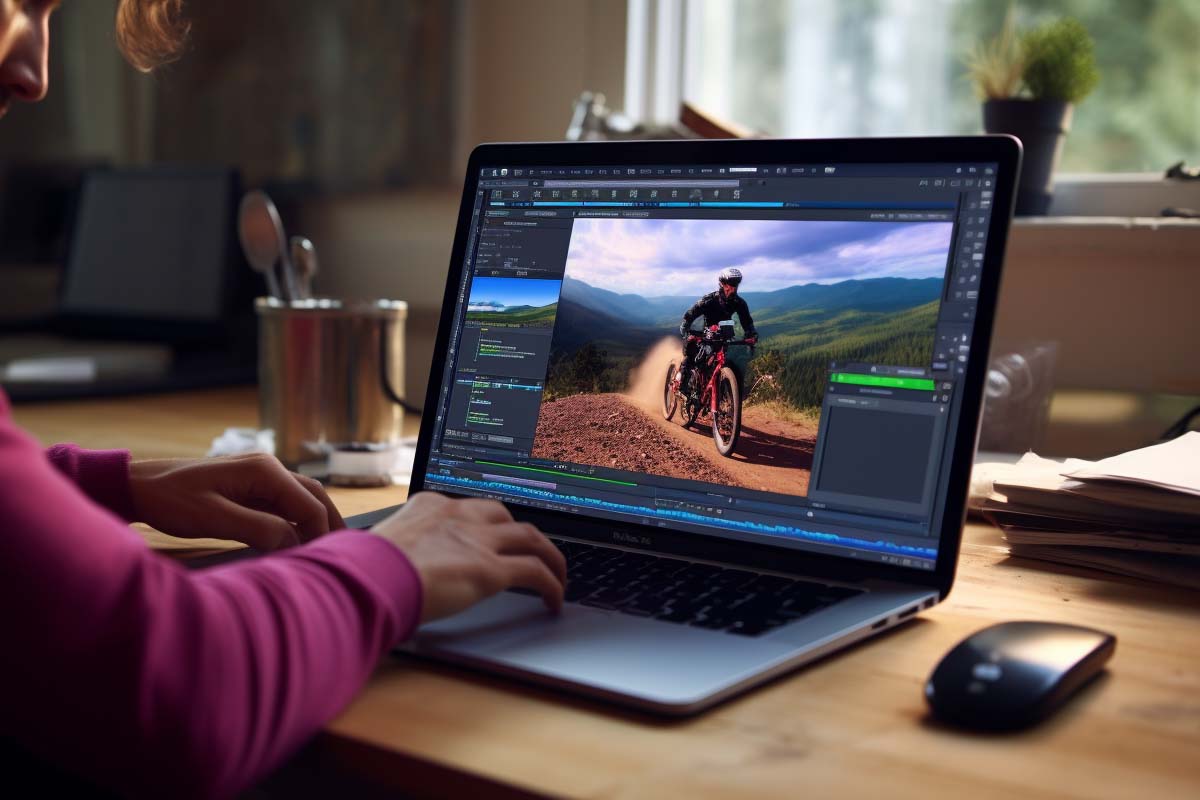
Need a quick branded clip, a title animation, or a simple product teaser without opening a full video editor? Can i edit video in Photoshop is a fair question, and the answer is yes for the right kind of project. Adobe Photoshop can handle short, design-heavy video work surprisingly well, especially when visuals matter more than complex audio, scene building, or multi-camera editing.
Quick Answer
Yes, can i edit video in Photoshop is answered with a practical yes: Adobe Photoshop can trim clips, stack layers, animate simple motion, and export short videos for social media or branded promos. It works best for short, visual projects, not long-form editing or advanced audio post-production.
Definition
Adobe Photoshop video editing is the process of using Adobe Photoshop’s Timeline panel and layered composition tools to trim, arrange, animate, and export short video clips inside a design-first workspace. It is best suited to motion graphics, social posts, title cards, and branded visual sequences.
| Primary use case | Short, design-heavy video clips as of August 2026 |
|---|---|
| Core tool | Timeline panel as of August 2026 |
| Best for | Social media promos, animated graphics, product teasers as of August 2026 |
| Strongest strengths | Layer control, typography, branding, visual polish as of August 2026 |
| Main limitation | Not built for advanced audio editing or long-form multi-track production as of August 2026 |
| Typical workflow | Import clip, trim, layer graphics, animate, export as of August 2026 |
| Best output formats | Short web or social clips as of August 2026 |
That makes Photoshop useful in a very specific way. If your project is mostly about a logo reveal, a product shot with text overlays, or a quick social media asset, editing video in Photoshop can save time because you stay in the same visual environment you already use for graphics.
The key is knowing where the line is. Photoshop for video editing is practical when the work is short, visual, and fairly simple, but it is not a replacement for a dedicated video editor when you need long timelines, rich sound design, or complex sequencing.
Photoshop can edit video, but it edits video like a designer’s tool, not like a filmmaker’s timeline.
What Photoshop Video Editing Really Means
Photoshop video editing means working with clips inside a layer-based design workspace instead of a traditional non-linear editing application. In other words, Photoshop treats video more like another visual asset sitting alongside text, shapes, and images.
That matters because the workflow feels familiar to anyone who already works with PSD files. You are not cutting scenes on a deep multi-track timeline the way you would in a dedicated editor; you are arranging visual elements, controlling timing, and using motion in a more compact way.
How Photoshop handles video layers
Video layers in Photoshop behave much like other layers, but they carry time with them. A clip can exist on the timeline while still being stacked above or below graphics, which makes it easy to combine motion with design.
- Static layers stay fixed unless you animate them.
- Video layers play over time and can be trimmed or repositioned.
- Overlays such as text, logos, and shapes can sit on top of footage.
- Timing controls let you reveal or hide elements when needed.
This is why Photoshop works so well for branded clips. If the project is really a visual composition with movement, Photoshop can be enough. If the project is a story with multiple scenes and detailed sound work, it starts to feel cramped fast.
For official guidance on Photoshop’s video features, Adobe documents the Timeline panel and related workflow on Adobe Help Center. Adobe’s own documentation is the clearest source for what the application is actually built to do.
How Does Photoshop Video Editing Work?
Photoshop video editing works through the Timeline panel, where clips and layers are arranged by time rather than by scene sequence. The process is simple, but it is still time-based, which means you need to think in terms of durations, entrances, exits, and visual emphasis.
- Import a clip into your Photoshop document and open the Timeline panel.
- Place the clip on the timeline so you can control its playback length.
- Trim the edges to keep only the portion you want.
- Stack design elements such as logos, type, icons, or shapes above the footage.
- Animate properties like position, opacity, and scale for motion effects.
- Preview and export the finished sequence when timing and layout look right.
The big advantage is control. You can create a short intro, a lower-third style label, or a branded product clip without switching apps. The big limitation is scale. Once the project becomes too long or too complex, the timeline begins to feel less like a video environment and more like a workaround.
Adobe’s official documentation on timelines and video layers is useful here because it shows the intended scope of the feature set, not just what users hope it can do. See Adobe Photoshop video and animation help for the built-in workflow.
What Are the Key Components of Photoshop for Video?
The key components of Photoshop video editing are the parts that make the workflow possible without turning it into a full editor. If you understand these pieces, you can judge whether Photoshop is enough before you waste time on a project that belongs elsewhere.
- Timeline panel
- The central place where video clips, layer timing, and animation are managed.
- Video layer
- A clip treated like a layer, so it can be stacked with graphics and text.
- Keyframes
- Markers that define changes over time, such as a fade, zoom, or slide.
- Opacity control
- Used to fade elements in and out cleanly for transitions and reveals.
- Transform properties
- Position, scale, and rotation settings that let you animate motion.
- Layer masks
- A visual way to hide or reveal portions of a layer without deleting content.
These components make Photoshop excellent for design-forward motion. They also explain the limitation: the tool is built to support image composition first, then video, not the other way around.
If you already know Layer structure from Photoshop work, the transition into video feels natural. The timeline simply adds motion and duration to the same visual logic.
How Does the Timeline Panel Work?
The Timeline panel is the heart of Photoshop video editing. It gives you a basic control center for clip timing, layer visibility, and simple animation, which is why so many users can create short clips without learning a separate editor.
Once a video is placed in the document, the Timeline panel lets you extend or shorten the visible portion, align overlays, and control when elements appear. That means you can build a clean intro card, add a call-to-action at the end, or create a fade-in without hunting through menus.
What you can control in the timeline
- Clip duration to keep only the section you need.
- Layer visibility so text or graphics appear at the right time.
- Motion changes using keyframes for scale, position, and opacity.
- Simple transitions like fades and reveals.
- Playback preview to check timing before export.
Photoshop does not try to match the depth of a dedicated editor. There is no rich multi-track audio environment, no serious scene management, and no advanced post-production pipeline. But for a 10-second promo or a branded clip, the timeline is often all you need.
Pro Tip
If you only need one clip, one message, and a few graphic overlays, Photoshop’s timeline is usually faster than opening a full video editor. Keep the sequence short and let the visuals do the work.
What Tasks Is Photoshop Best For?
Photoshop is best for video tasks where design quality matters more than editing complexity. Think of it as a motion-friendly canvas for short-form content, not a replacement for a full editing suite.
Common projects include social media promos, animated title cards, product teasers, event announcements, and quick branded clips. These projects usually need strong typography, clean composition, and a fast turnaround more than they need advanced cut management.
Best-fit project types
- Social media promos for Instagram, LinkedIn, or short-form vertical video.
- Product teasers with moving text and polished stills.
- Logo reveals for branding intros or outro cards.
- Before-and-after clips that rely on visual comparison.
- Title overlays for presentations, web embeds, or internal demos.
For example, a product marketing team can place a device render on one layer, animate a headline over it, and export a polished 8-second clip the same day. That kind of work fits Photoshop’s strengths because the composition is simple, but the visual precision matters.
For general platform guidance on video orientation and delivery, Adobe’s support resources and platform documentation are more useful than guesswork. If your output is meant for social media, you should always match the dimensions and aspect ratio before you start.
Can We Edit Videos in Photoshop for Social Media?
Yes, we can edit videos in Photoshop for social media, and that is one of the most practical use cases for the application. The reason is simple: social clips are often short, visual, and built around branding rather than complex storytelling.
A 6- to 15-second clip for a campaign teaser, a vertical product highlight, or a simple announcement card does not need a full post-production workflow. It needs attention, clarity, and a clean finish.
Social media video tasks Photoshop handles well
- Vertical and square layouts for feed-friendly content.
- Text overlays that communicate the message quickly.
- Brand colors and logos to keep the look consistent.
- Short motion effects that add energy without clutter.
- Fast content updates when a title, date, or offer changes.
This is where the query “does Photoshop edit videos?” gets its real-world answer. Yes, it does, but the win is not about deep editing features. The win is speed for design-led content.
Short social clips are often more about layout, typography, and brand consistency than cinematic editing complexity.
For teams that publish often, that matters. You can reuse a visual system, swap the text or product image, and keep the production process tight. That is exactly where Photoshop earns its place.
How Do You Animate Graphics and Product Shots?
Animating graphics in Photoshop means turning still assets into motion pieces with simple movement, timing, and layer effects. This is one of the strongest reasons people ask whether can i edit video in Photoshop in the first place.
Photoshop works especially well when your source material is already designed. A logo, a product cutout, a background texture, and a headline can become a polished promo without leaving the app.
Examples of useful motion effects
- Zooming in on a product to focus attention.
- Sliding text into place for a cleaner title reveal.
- Fading overlays on and off for a subtle transition.
- Revealing a logo with opacity or position changes.
- Before-and-after motion for visual comparisons.
Product marketing teams often like this workflow because it keeps design control tight. If the image needs careful spacing, consistent type, or brand-accurate colors, Photoshop gives you that control before the clip is exported.
If you are working with Keyframe-style animation for the first time, keep it basic. A small change in position or opacity is usually enough to create motion that feels intentional rather than distracting.
What Can Photoshop Do Well?
Photoshop can do well on the exact jobs where visual polish matters and the timeline stays simple. The strength of the application is not breadth; it is speed and precision for visual composition.
It can trim clips, stack visual elements, animate basic properties, and export a finished short video without forcing you into another app. That means fewer handoffs when the work is primarily design-driven.
| What Photoshop does well | Short clips, layered design, simple animation, branded visuals, quick exports |
|---|---|
| Why it helps | It keeps typography, graphics, and motion in one workspace |
Common strengths include:
- Typography control for clean title and subtitle treatment.
- Visual consistency across color, spacing, and branding.
- Layer stacking for combining video, images, and shapes.
- Simple motion for lightweight animation without complexity.
- Quick edits when the goal is a short clip, not a full edit suite.
That makes Photoshop a strong option for designer-led teams and solo creators who need a practical answer to “can i edit videos in Photoshop” without learning an entirely new workflow.
Where Does Photoshop Start to Struggle?
Photoshop starts to struggle when the project behaves like a real video production rather than a motion graphic. The more scenes, audio detail, or timing complexity you add, the more the app shows its limits.
Long-form content is the first problem. If you need multiple cuts, layered sound, transitions between scenes, and detailed pacing, Photoshop is simply not the right tool. It can do video, but it is not designed to replace a dedicated editor.
Common pain points
- Audio editing is too limited for real mixing or cleanup.
- Multi-scene timelines become harder to manage as clips multiply.
- Advanced transitions are better handled in video-native tools.
- Large projects can become awkward to organize in a design workspace.
- Collaborative editing is usually easier in a dedicated video workflow.
If the work involves dialogue cleanup, music balancing, sound design, or multiple camera angles, move to a proper editor. Photoshop is excellent for a compact visual sequence, but it is not a substitute for a production-grade timeline.
That distinction is echoed by Adobe’s own positioning in its documentation. Photoshop supports video and animation, but its core identity remains image editing and design, not full post-production. See Adobe Help Center for the built-in scope.
How Do You Edit a Simple Video in Photoshop Step by Step?
The simplest Photoshop video workflow starts with a clean document and ends with a short export. If you keep the scope tight, the process is straightforward and repeatable.
- Create a document at the correct size and aspect ratio for your target platform.
- Import your clip into the document and open the Timeline panel.
- Trim the footage to keep only the segment you want.
- Add graphics such as text, logos, shapes, or images above the clip.
- Animate the layers using opacity, position, or scale adjustments.
- Preview the motion to check readability and timing.
- Export the video using settings that match the destination platform.
The most common mistake is starting with the footage before deciding the format. If your clip is meant for a vertical feed, build it as vertical from the beginning. If it is for a widescreen internal presentation, set that format first.
That saves time and prevents awkward cropping later. It also makes your exported clip look intentional rather than resized as an afterthought.
How Do You Use Photoshop for Social Media Clips?
Photoshop for social media clips works best when the message is compact and the design needs to look sharp fast. This is the kind of content where the app’s visual strengths matter more than deep editing features.
Think short-form content: a sale announcement, a feature highlight, a quote card with motion, or a quick product spotlight. Each of these can be assembled with layered graphics, a little movement, and a clean export.
- Use large text so the message is readable on mobile.
- Keep motion simple so the clip does not feel busy.
- Match the platform size before you design anything.
- Limit the runtime so the clip feels sharp and deliberate.
- Use branding consistently across type, colors, and logo placement.
Social content lives or dies on attention. Photoshop helps you get there by making the visual hierarchy easy to control. If the clip is only a few seconds long, you can spend your energy on message clarity instead of wrestling with a deep editor.
For platform-specific delivery, check official social platform specs before exporting. That keeps your resolution and aspect ratio aligned with the destination and avoids compression surprises after upload.
When Should You Use Photoshop, and When Should You Not?
Use Photoshop when the project is short, visual, and built around design. Do not use Photoshop when the project depends on advanced editing, rich audio control, or complex sequencing.
This is the simplest way to decide whether can i edit video in Photoshop is the right question or the wrong one for your task.
Use Photoshop when
- The clip is short and branded.
- Typography and layout are more important than editing depth.
- You need a quick motion graphic or title sequence.
- You want to stay in a familiar design workflow.
Choose a dedicated video editor when
- The project has multiple scenes or long runtime.
- You need detailed audio mixing or cleanup.
- You are editing interviews, dialogue, or multi-camera footage.
- The project requires advanced transitions or editorial structure.
That boundary is useful because it keeps expectations realistic. Photoshop is not a gimmick here; it is a practical tool for a specific category of work. Use it there, and it performs well.
How Does Photoshop Compare to Dedicated Video Editors?
Photoshop compares well against dedicated editors only for short, design-heavy work. It loses quickly once editing becomes the core of the job instead of a support function.
| Photoshop | Best for design, layered visuals, and short branded clips |
|---|---|
| Dedicated video editor | Best for long timelines, detailed audio, transitions, and complex storytelling |
Photoshop gives you tighter control over visuals. Dedicated editors give you deeper control over timing, sound, sequence, and production flow. That is the real tradeoff.
If you are already working inside Adobe’s ecosystem, Photoshop can be a strong first stop for graphics-heavy video assets. But once the project starts growing into an actual edit, the smarter move is to hand it off to a true video environment instead of forcing Photoshop beyond its comfort zone.
For broader workforce context around digital media and creative software roles, the U.S. Bureau of Labor Statistics Occupational Outlook Handbook is useful for understanding how software skills are used across media, design, and production-related jobs.
What Mistakes Should You Avoid?
The biggest mistakes happen when users expect Photoshop to behave like a full editor. That usually leads to cluttered timelines, awkward exports, or unnecessary frustration.
Another common mistake is trying to make a short clip too complicated. If you overload the composition with effects, layers, and long footage, you erase the main reason to use Photoshop in the first place.
- Do not overbuild the timeline with more layers than the message needs.
- Do not ignore aspect ratio before you start editing.
- Do not skip previewing the export in a real player.
- Do not rely on Photoshop for serious audio work.
- Do not treat a short promo like a full film project.
Warning
A short video can still fail if the text is too small, the timing is off, or the export settings do not match the platform. Test the output before you post it.
Good planning fixes most of these problems. If your message, layout, and runtime are clear before you start, Photoshop becomes a fast and effective tool instead of a frustrating one.
What Are the Best Practices for Better Results?
Best results in Photoshop video editing come from discipline. Keep the sequence short, use visual hierarchy aggressively, and resist the urge to add every available effect just because the app allows it.
Think in terms of communication first. What is the one message the viewer should understand in the first three seconds? Build the layout around that question.
- Keep the message short so it reads quickly on small screens.
- Use strong typography to anchor the composition.
- Match the platform format before adding design work.
- Preview often to catch timing and readability issues early.
- Use simple motion rather than forcing complicated animation.
A clean, branded 8-second clip usually performs better than a cluttered 20-second one. The goal is not to prove Photoshop can do everything. The goal is to use it where it is naturally strong and stop before the workflow becomes inefficient.
For visual consistency and layout logic, Adobe’s own Photoshop documentation remains the best source for feature behavior, while official platform specs help you finish the job correctly. That combination is enough for most short-format projects.
Key Takeaway
Can i edit video in Photoshop is a yes for short, design-led projects.
Photoshop works best for social clips, title cards, branded promos, and simple animated graphics.
The Timeline panel is the core tool, and its strengths are layering, timing, and basic motion.
Photoshop is not built for deep audio work, multi-scene editing, or complex production timelines.
If the job is visual and short, Photoshop is practical. If the job is cinematic or audio-heavy, use a dedicated video editor.
Can I Edit Video in Photoshop for Real Projects?
Yes, you can edit video in Photoshop for real projects as long as the project fits the tool. That usually means short promos, product clips, motion graphics, and branded content where the design matters more than editorial complexity.
If your content needs strong typography, quick iteration, and a simple export path, Photoshop can be enough. If the work needs deep editing structure, detailed audio management, or a long timeline, Photoshop should be treated as a supporting tool, not the main one.
The practical answer is simple: use Photoshop when the video is short, visual, and straightforward. That is where it saves time, keeps the workflow familiar, and delivers a polished result without unnecessary overhead.
ITU Online IT Training recommends choosing the tool that fits the project, not the tool that sounds most impressive. Photoshop is a good answer when the job is design-first and the editing needs stay light.
CompTIA®, Adobe Photoshop, and Adobe are trademarks of their respective owners.
