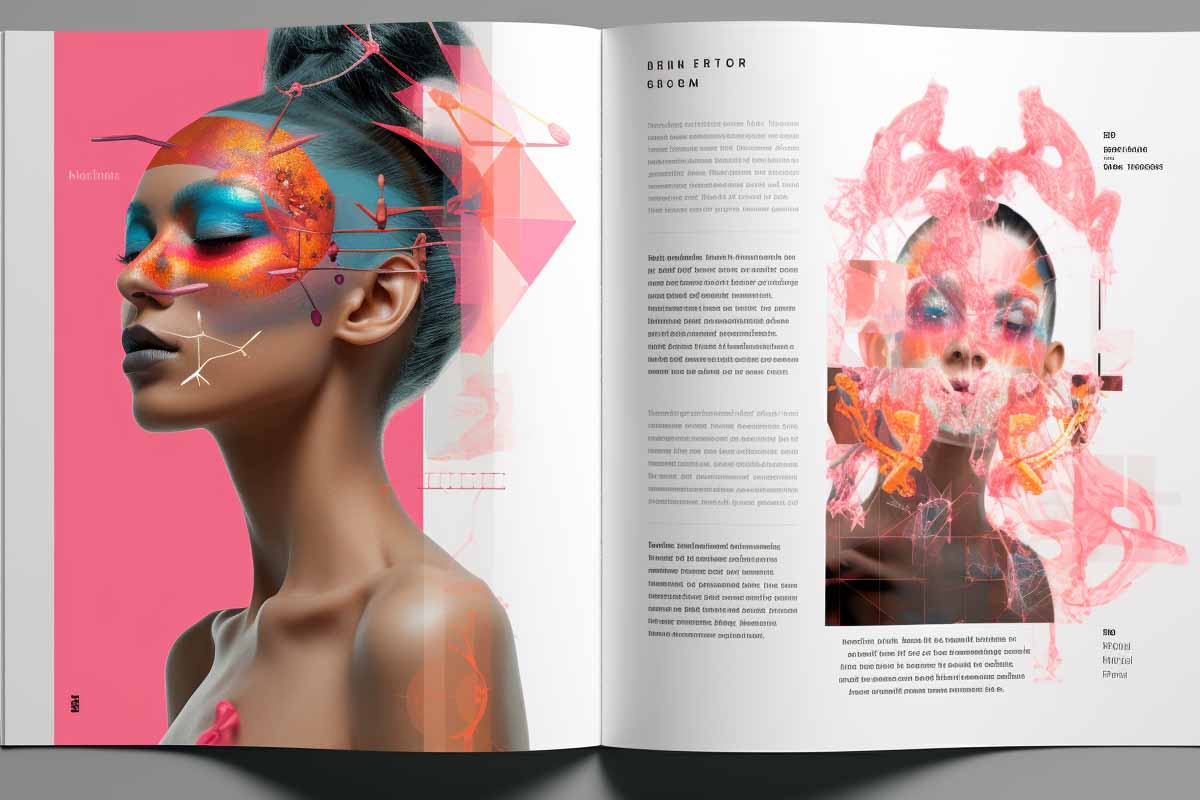
Creating a polished how to make a flip book pdf in indesign workflow starts with one simple truth: the flipbook will never look better than the PDF behind it. If the source file is sloppy, the final Adobe flipbook will show every spacing issue, image problem, and layout mistake the moment someone opens it on a phone or zooms in on a desktop screen.
Quick Answer
To make a flip book PDF in Adobe InDesign, build a clean multi-page layout in InDesign, export a high-quality PDF, and upload that PDF to a dedicated flipbook platform to add page-turn animation, zoom, thumbnails, search, and mobile viewing. InDesign handles the layout; the flipbook platform handles the interactive reading experience.
Quick Procedure
- Plan the publication format, audience, and reading experience.
- Set up the InDesign document with the correct size, margins, and master pages.
- Design the pages with consistent typography, images, and spacing.
- Export a high-quality PDF from InDesign and review it carefully.
- Upload the PDF to a flipbook platform and convert it.
- Test page turns, zoom, thumbnails, links, and mobile layout.
- Fix any issues before publishing the final Adobe flipbook.
| Best Use Case | Multi-page brochures, catalogs, reports, magazines, and portfolios |
|---|---|
| Primary Tool | Adobe InDesign for layout and PDF preparation |
| Final Delivery | Uploaded PDF converted in a flipbook platform |
| Key Output Features | Page-turn animation, zoom, search, thumbnails, and mobile-friendly viewing |
| Core Skill | Designing a strong source file before conversion |
| Common Mistake | Expecting the flipbook platform to fix weak layout decisions |
| Best Result | A polished, readable, interactive publication that works across devices |
Why Adobe InDesign Is the Best Starting Point for a Flipbook
Adobe InDesign is the right starting point because it is built for long-form, multi-page publishing, not quick file conversion. If you are producing a brochure, annual report, magazine, catalog, or portfolio, InDesign gives you control over page structure, typography, styles, grids, and master pages that a rough PDF export or browser-based editor usually cannot match.
That control matters because flipbooks expose layout weaknesses fast. A document that feels acceptable in print can feel awkward on screen if the spacing is inconsistent, the text is too dense, or the images are not sized correctly. A strong InDesign file creates a clean PDF, and a clean PDF creates a better adobe flipbook.
For designers, the difference is practical:
- InDesign handles layout precision, repeated elements, and page consistency.
- PDF export preserves the document for review and conversion.
- Flipbook software adds the browsing experience, such as page turns, zoom, search, and mobile interaction.
The U.S. Bureau of Labor Statistics notes that desktop publishers and related design roles depend heavily on layout and digital production skills, which is exactly why a disciplined source file matters. For broader digital publishing workflows, Adobe’s own InDesign and PDF export guidance reinforces that the layout stage is where quality is won or lost. See BLS Occupational Outlook Handbook and Adobe InDesign Help.
A flipbook does not rescue a bad layout. It only makes a bad layout easier to see.
How Should You Plan Your Flipbook Before You Design in InDesign?
The best how to make a flip book pdf in indesign workflow starts before you open the software. You need to know what the publication is for, who will read it, and how they will access it. A sales brochure read on mobile needs different pacing than a 60-page annual report viewed on a laptop or in a browser on a shared screen.
Start by defining the publication purpose. If the goal is lead generation, you should leave room for strong calls to action and contact links. If it is a product catalog, you should organize pages so browsing feels fast and predictable. If it is a report or portfolio, structure matters more than flashy visuals because users need to find sections quickly.
Choose the reading experience first
Decide whether the final flipbook should feel like a magazine, a presentation, or a searchable reference document. That choice affects page size, orientation, and whether spreads make sense. For example, a landscape brochure may work well as a spread-based PDF, while a mobile-first sales sheet usually performs better as single pages.
- Screen-first reading favors larger type, fewer words per page, and strong visual hierarchy.
- Tablet viewing can support spreads and richer imagery.
- Mobile browsing requires larger tap targets, simple navigation, and less text density.
Plan this early because changing the format after design begins is expensive. Adobe’s documentation on InDesign document setup and export settings is the right place to confirm page structure decisions before production starts. Review the official guidance at Adobe InDesign document setup.
Note
If you do not know the final destination of the PDF, you are designing blind. The export settings, page size, and layout choices should be based on how the flipbook will actually be used.
Prerequisites
Before you start building the file, make sure the basics are in place. Missing one of these items is the fastest way to create export problems or an unusable flipbook.
- Adobe InDesign installed and updated.
- A finished or near-finished manuscript, product list, report, or marketing copy.
- Approved images, logos, charts, and brand assets.
- A clear page count estimate and final page size.
- Access to a flipbook platform such as Issuu or FlippingBook for final conversion.
- Basic knowledge of paragraph styles, master pages, and PDF export settings.
- Links, contact details, and any call-to-action destinations ready before export.
If your content is still changing daily, delay production. A flipbook is easiest to build after the source material is stable. That saves time and reduces rework later.
How Do You Set Up the InDesign Document for Clean Export?
A clean InDesign document starts with the right page setup. Choose the final page size, orientation, margins, and facing-page structure before you place any content. If the publication will be read like a magazine or catalog, facing pages usually make sense. If it will be consumed on mobile or as a single-page digital document, a single-page structure may be easier to navigate in a flipbook viewer.
Use master pages to manage repeated items like page numbers, headers, section labels, and recurring design elements. That keeps the file consistent and reduces the chance of manually editing the same item across dozens of pages. It also makes late-stage changes faster, which is critical in production work.
Build the structure before the content
Set up paragraph styles, character styles, and object styles early. This is the best way to keep typography consistent and to make future edits efficient. If your headings, subheads, body copy, captions, and pull quotes all use styles, you can fix the entire publication by changing one style rather than touching every page.
- Create the document with the final trim size and page count estimate.
- Set margins and columns based on how much text and imagery each page will carry.
- Enable facing pages if the publication is designed as a spread-based piece.
- Build master pages for repeated headers, footers, and page numbers.
- Define styles for headings, body copy, captions, and callouts before placing content.
Adobe’s official guidance for document creation and page setup is useful here because it reinforces a simple production rule: structure first, decoration second. See Adobe InDesign document setup.
How Do You Design for Readability and Visual Consistency?
Readability is the difference between a flipbook that gets used and one that gets closed after two pages. People do not read digital publications the same way they read a printed brochure. They scan, pinch, zoom, and jump around. That means your layout must survive quick navigation and screen-based viewing.
Use type that stays legible at common screen sizes. Keep line length under control, especially in body copy, because long lines are tiring on screens. Make sure leading is generous enough for comfortable scanning, and avoid stacking too much text into a single page just because the page has space.
Keep hierarchy obvious
A strong visual hierarchy tells readers where to look first. Headlines should be clearly larger than body text, subheads should break up long sections, and captions should be styled differently so they do not compete with the main message. In a flipbook, poor hierarchy becomes even more obvious because users can jump directly to any page and immediately compare sections.
- Use one or two type families unless there is a brand reason to use more.
- Keep spacing consistent between headings, paragraphs, and images.
- Use contrast carefully so text is readable on both bright and dark screens.
- Avoid decorative clutter that slows down scanning.
Adobe’s typography and layout guidance in InDesign supports this approach, but the practical test is simple: if a reader can understand the page in three seconds, the structure is working. If they need to squint, zoom constantly, or hunt for the main point, the layout needs revision.
Good digital publication design does not ask readers to work harder than necessary.
What Should You Do with Images, Graphics, and Interactive-Ready Assets?
Images can make or break the final adobe flipbook. If the images are soft, pixelated, or over-compressed, the problem becomes obvious as soon as the reader zooms in. On the other hand, if the images are too large and not optimized, the PDF becomes heavy and slow to load in the browser.
Use the right balance between quality and file size. High-resolution photos are important, but not every image needs to be oversized. Charts, logos, icons, and illustrations should be crisp and correctly placed so they stay sharp in the PDF and in the flipbook viewer. When possible, use vector artwork for logos and diagrams because it scales cleanly.
Optimize for the viewer, not just the layout
Think about how a flipbook reader behaves. They may zoom into a chart, open the publication on a tablet, or jump quickly between sections. That means every visual element should support fast comprehension. Cropping should be consistent, image alignment should feel intentional, and visual rhythm should stay stable from page to page.
- Use high-resolution source files for photos and critical graphics.
- Keep image compression reasonable so quality does not collapse on zoom.
- Use vector formats when possible for logos and line art.
- Check image placement so important content is not clipped near the fold or edge.
For technical teams that care about digital quality and accessibility, this is also a usability issue. NIST’s digital guidance and Adobe’s export documentation both point toward the same practical rule: optimize assets for the way people actually consume the file, not for how it looks in a source folder. See NIST and Adobe InDesign export guidance.
How Do You Build a Strong PDF Export from InDesign?
The PDF export is the handoff point between design and interaction. If this file is wrong, the flipbook conversion can only amplify the mistake. Export from InDesign using settings that preserve text clarity, image quality, and page structure, then review the file before you upload it anywhere.
The most common export failures are predictable: fonts not handled properly, images too compressed, page order incorrect, or spreads exported in a way that conflicts with the final viewing experience. These are not minor issues. In a flipbook, they can affect navigation, readability, and trust.
- Open Export and choose PDF as the output format.
- Use a print-quality preset or a custom setting that preserves sharp text and images.
- Embed fonts so the document displays correctly across devices.
- Check page range, bleed, and marks so the PDF matches the intended publication structure.
- Export and proof the PDF before uploading it to the flipbook platform.
Adobe’s official PDF export documentation is the best place to verify the options that matter most. If your publication includes links or navigation elements, test them in the PDF before conversion. See Adobe InDesign export guidance.
Warning
Do not upload the first exported PDF and assume the flipbook platform will clean it up. If the PDF has weak text, broken order, or bad image quality, the final publication will inherit those problems.
Which Flipbook Platform Should You Use for the Final Conversion?
The actual flipbook effect is usually created outside InDesign. A dedicated publishing platform is what turns the PDF into a browser-based interactive publication with page-turn animation, zoom, search, and thumbnail navigation. That is why the platform choice matters almost as much as the design itself.
Two common names in this space are Issuu and FlippingBook, but the right choice depends on your use case. Some platforms are better for quick sharing and distribution. Others provide stronger branding, lead capture, analytics, or custom viewer controls. Choose based on the experience you need, not the feature list that looks longest on a sales page.
| Best for speed | A platform with simple upload, quick rendering, and easy sharing links |
|---|---|
| Best for branding | A platform that supports custom colors, cover settings, and embedded calls to action |
| Best for navigation | A platform with thumbnails, search, zoom, and reliable page controls |
| Best for sales | A platform with analytics, lead capture, and trackable engagement |
Issuu and FlippingBook both document browser-based publishing features on their official sites. Review the vendor documentation before choosing a platform so you know what happens after the PDF is uploaded. See Issuu and FlippingBook.
How Do You Upload and Convert the PDF to a Flipbook?
Once the PDF is ready, upload it to the flipbook platform and let the service render the pages into an interactive viewer. This conversion step typically creates page images or HTML-based viewing layers that support page-turn effects, zoom controls, thumbnails, and mobile responsiveness.
During conversion, the platform interprets the page order, cover display, and spread behavior. That is why a PDF that looks fine in a desktop viewer can still produce a strange result if it was exported with the wrong page structure. If the platform offers spread handling options, check them carefully before publishing.
- Log in to the flipbook platform and start a new publication.
- Upload the exported PDF from InDesign.
- Review conversion settings for spreads, cover display, and viewer defaults.
- Wait for rendering to complete and then open the preview.
- Inspect page order, link behavior, and navigation controls on desktop and mobile.
The output should feel like a readable publication, not a static PDF inside a fancy frame. If the viewer is hard to navigate or the pages appear out of sequence, stop and fix the source file or the upload settings before going live.
How Can You Enhance the Flipbook with Reader-Friendly Features?
The best flipbook platforms do more than mimic a paper page. They add practical tools that help readers find information faster. Thumbnails let users jump around the document, zoom helps with detailed charts and small text, and search saves time when someone needs a specific section.
Add clickable links when they help the reader act quickly. Contact pages, product URLs, landing pages, and form links all make sense if they support the purpose of the publication. The key is restraint. Too many interactive elements can make a polished publication feel cluttered or distracting.
- Use thumbnails for long publications with many sections.
- Enable zoom for catalogs, reports, and data-heavy pages.
- Add search when readers need to find terms or topics quickly.
- Keep links relevant so navigation feels helpful rather than noisy.
- Use branded CTAs only where they support the reading goal.
A smart digital publication respects attention. It does not force the reader to discover useful content by accident. It makes the next step obvious.
How Do You Test the Flipbook on Multiple Devices and Browsers?
Testing is where weak flipbook work gets exposed. A publication that looks polished on a large monitor may fail on a phone if the text is too small, the tap targets are cramped, or the spreads render poorly. Test across desktop, tablet, and mobile before sharing the link publicly.
Use common browsers and compare how the publication behaves in each one. Page-turn animation, zoom, and thumbnails should work smoothly. The layout should not clip important content near the margins, and the cover should display correctly. If the publication includes links, test every important one, not just a sample.
- Open the flipbook on desktop, tablet, and mobile.
- Check legibility for body text, captions, and labels.
- Test navigation using thumbnails, page arrows, and search.
- Verify links and calls to action on all key pages.
- Review zoom behavior for charts, tables, and small text.
If the viewer feels awkward on mobile, fix it before launch. Mobile issues are not edge cases anymore; they are common reading conditions for digital publications.
For browser compatibility concerns, generic web testing guidance from major vendors is still useful, especially if the flipbook is embedded in a website. See Microsoft and your platform’s official browser support documentation.
What Are the Most Common Mistakes That Make Flipbooks Look Unprofessional?
Most bad flipbooks fail for the same reasons. The source PDF is weak, the images are underpowered, or the publication was never checked on smaller screens. A flipbook platform can add interaction, but it cannot fix the underlying design problems.
The most common mistake is expecting the conversion to do the layout work. That rarely ends well. Another common problem is overdesigning the page with too many fonts, too much text, or cluttered spacing. The page may look busy in InDesign, but it becomes harder to read in the viewer.
- Poor source layout that relies on conversion to look polished.
- Low-resolution assets that blur when zoomed.
- Too much copy per page creating visual overload.
- Ignoring mobile and tablet viewing conditions.
- Skipping proofing before publication.
The Information Quality Act and digital accessibility expectations in government and enterprise environments both reinforce the same principle: if readers cannot use the content reliably, the content is not finished. A polished flipbook is one that behaves well, reads clearly, and supports the user’s task.
If the publication is hard to use, the animation is not a feature. It is just decoration.
What Are the Best Practices for a Better Adobe Flipbook Workflow?
A better adobe flipbook software workflow starts with discipline. Build the source document carefully, export deliberately, then test the result like a user would. This is true whether you are producing a one-page sales sheet or a 100-page catalog.
Keep the visual system consistent from the first page to the last. That means using the same styles, the same spacing logic, and the same treatment for section heads, image captions, and calls to action. Readers should never feel like the publication changes personality halfway through.
Think like a publisher, not a file exporter
The goal is not to convert a PDF into a flipbook as quickly as possible. The goal is to make a publication that feels intentional, easy to navigate, and worth revisiting. That means choosing the right platform features, limiting unnecessary visual noise, and treating every page as part of a larger reading experience.
- Start with a strong InDesign file instead of trying to fix a weak PDF later.
- Export at a quality level that supports both readability and file size.
- Match platform features to the publication’s purpose.
- Proof every important page before publication.
- Design for browsing, not just for static presentation.
That is the real answer to how to make a flip book pdf in indesign: use InDesign for structure, export a strong PDF, and let the flipbook platform handle the interactive layer.
Key Takeaway
- InDesign creates the source file; it does not produce the final flipbook experience by itself.
- A clean PDF export is the difference between a professional publication and a messy one.
- Flipbook platforms add interaction such as page turns, zoom, thumbnails, and search.
- Mobile testing is mandatory because many readers will open the publication on a phone.
- The quality of the flipbook depends on the quality of the InDesign layout behind it.
Conclusion
If you want a polished digital publication, the process is straightforward: design or refine the layout in InDesign, export a high-quality PDF, and convert it in a flipbook platform that supports interactive reading. That workflow gives you the layout precision of InDesign and the browsing features of an Adobe flipbook-style experience.
The biggest advantage is not the animation. It is clarity. Readers can move through the publication more easily, find what they need faster, and interact with the content without fighting the format.
Use the source file as your quality checkpoint. If the InDesign document is organized, readable, and consistent, the final flipbook will look far more professional. ITU Online IT Training recommends treating every PDF export as a preview of the final user experience, not just a file conversion step.
Adobe® and InDesign are trademarks of Adobe Inc.
