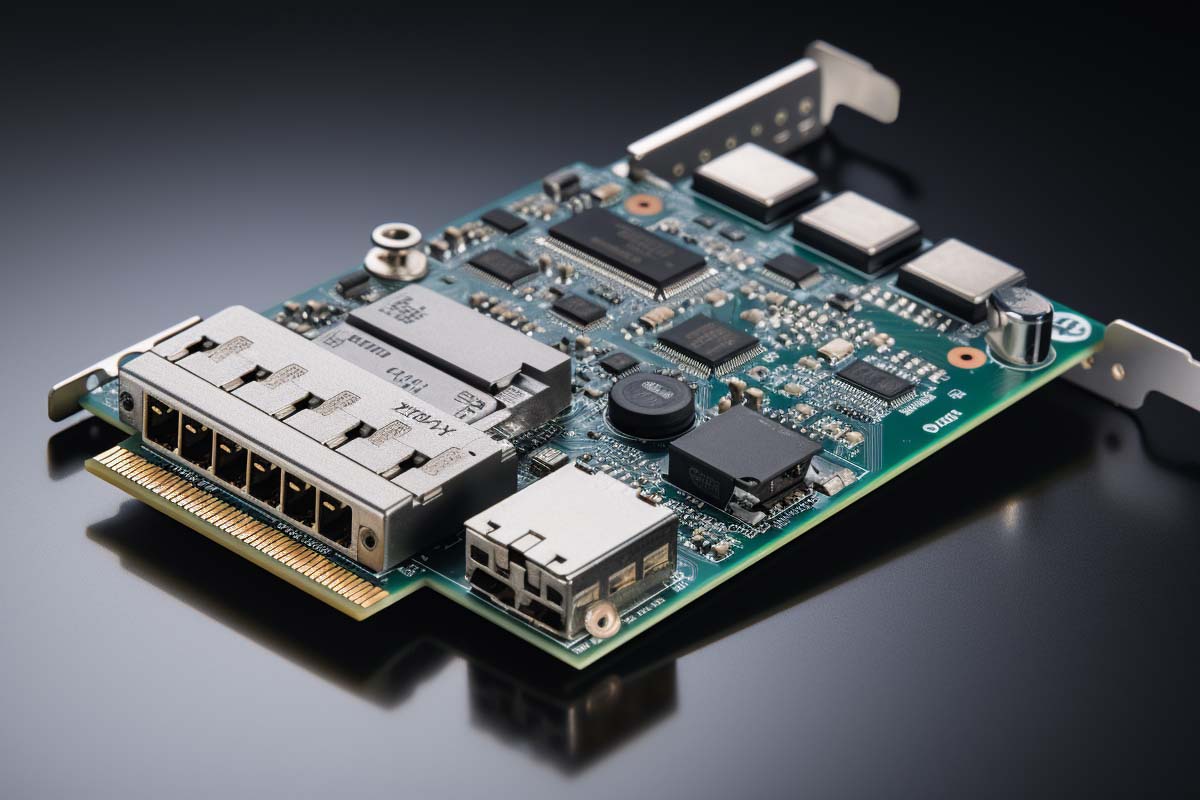
Understanding network hardware devices starts with one simple truth: most outages are not “the network” failing everywhere at once. They are usually traced to one bad cable, one misconfigured switch port, one dead NIC, or one upstream service problem.
Cisco CCNA v1.1 (200-301)
Learn essential networking skills and gain hands-on experience in configuring, verifying, and troubleshooting real networks to advance your IT career.
Get this course on Udemy at the lowest price →Quick Answer
Network hardware devices are the physical components that move data between computers, servers, printers, phones, wireless clients, and the internet. They include NICs, switches, routers, modems, access points, and gateways. Knowing what each device does makes troubleshooting faster, improves design decisions, and supports skills aligned with CompTIA® Network, NIST NICE, and Microsoft® Learn.
Definition
Network hardware devices are the physical components that connect endpoints and move traffic across a local network, between networks, and out to internet services. They include devices such as switches, routers, modems, access points, and network interface cards.
| Primary Focus | Physical devices that connect, forward, convert, or extend network traffic as of July 2026 |
|---|---|
| Core Devices | NIC, switch, router, modem, access point, hub, bridge, repeater, gateway as of July 2026 |
| Main OSI Layers | Layer 1, Layer 2, and Layer 3 as of July 2026 |
| Common Enterprise Features | VLANs, PoE, QoS, link aggregation, and centralized management as of July 2026 |
| Troubleshooting Focus | Power, cabling, link lights, addressing, gateway reachability, and routing paths as of July 2026 |
| Career Relevance | Useful for roles aligned with CompTIA® Network, NIST NICE, and Microsoft® Learn as of July 2026 |
What Are Network Hardware Devices?
Network hardware devices are the physical building blocks that make communication possible in a LAN and between that LAN and outside services. They sit between endpoints and the services users depend on, including file servers, printers, voice systems, cloud apps, and the public internet.
The practical value of knowing these devices is not academic. When users say “the network is down,” the real issue is often much narrower: a failed port, an expired ISP handoff, a wrong default gateway, or a wireless signal problem. That is why IT teams trained through programs such as Cisco® CCNA v1.1 (200-301) spend so much time on fundamentals, traffic flow, and basic networking concepts.
These devices also shape performance, Reliability, and security. A small office may only need a modem-router combo and a single switch. A larger environment may need segmented switching, redundant uplinks, PoE, access control, and wireless management across several floors.
Most network troubleshooting gets easier when you stop thinking in terms of “the network” and start asking which device, which link, and which layer is actually failing.
Pro Tip
If you can identify where traffic changes hands from one device to another, you can usually narrow a problem to a layer, a port, or a policy in minutes instead of hours.
How Network Hardware Devices Evolve Over Time
Early LANs were simple. They used hubs, shared cabling, and limited segmentation, which kept costs down but created collisions and congestion as more endpoints joined the network. That design worked when traffic was light and application demands were modest. It breaks down quickly when modern users expect file sharing, voice, video, cloud access, and wireless mobility at the same time.
The first major improvement came from switching. A switch learns MAC addresses, builds a forwarding table, and sends frames only where they need to go. That shift reduced unnecessary flooding and gave administrators a way to separate traffic into VLANs, add QoS, and support more devices without turning every broadcast into a performance event.
Modern environments add even more pressure. Ethernet speeds have climbed, Wi-Fi has become a primary access method, and remote work has pushed more traffic through edge devices and cloud-managed services. Vendors now build features like Power over Ethernet, multi-gig ports, stacking, and centralized telemetry into the hardware itself. The result is not just faster connectivity, but better visibility and control.
For current vendor guidance on switching, routing, and management fundamentals, the official documentation from Microsoft Learn, Cisco, and Aruba shows how network design has moved from simple connectivity to policy-driven operation.
What changed most in modern hardware
- Visibility through dashboards, SNMP, logs, and telemetry.
- Segmentation using VLANs and separate subnets.
- Power delivery through PoE for phones, cameras, and access points.
- Capacity planning with multi-gig uplinks and better oversubscription handling.
- Operational control through cloud or controller-based management.
How Network Hardware Works in the OSI Model
The OSI model is a framework that helps you map devices to the kind of problem they solve. If you know whether traffic fails at the signal, frame, packet, or application level, you can test the right thing first instead of guessing.
- Layer 1 devices move bits across the physical medium. Cables, repeaters, transceivers, and hubs belong here because they handle signal transmission rather than addressing.
- Layer 2 devices move frames using MAC addresses. Switches and bridges operate here and decide where traffic should go inside a LAN.
- Layer 3 devices move packets between networks. Routers use IP addresses and routing tables to send traffic to the correct next hop.
- Multi-layer devices such as access points, firewalls, and gateways can act across more than one OSI layer depending on how they are deployed.
This layered view is more than theory. If a laptop has no link light, start at Layer 1. If the link is up but local traffic fails, look at Layer 2. If the device can reach the local switch but not another subnet, move to Layer 3. That structure is why network technicians build their troubleshooting habits around the OSI model and the skills expected in CompTIA Network+ and the NIST NICE Workforce Framework.
What Is the Purpose of a NIC?
A network interface card (NIC) is the hardware that lets a device connect to a wired or wireless network. The purpose of NIC is to translate data from the operating system into network signals and give the device a unique interface for communication on the LAN.
People sometimes ask about the lan card and whether it is different from a NIC. In practice, a LAN card is just another way of describing a wired NIC. On laptops, desktops, printers, IP phones, and servers, the NIC is the point where the device joins the network and identifies itself to switches, access points, and authentication systems.
NIC problems are common because they look like network failures from the user’s point of view. Outdated drivers can cause drops. Speed and duplex mismatches can create retransmissions and poor file transfer performance. A disabled adapter can make a machine appear offline even when the switch is fine. On servers, multiple NICs are often used for redundancy, teaming, or separate traffic paths.
Common NIC issues to check first
- Driver version and firmware compatibility.
- Speed and duplex negotiation on both ends of the link.
- Interface status in the operating system and BIOS/UEFI.
- IP assignment from DHCP or static configuration.
- Physical damage to ports, cables, or dongles.
Microsoft’s official networking guidance at Microsoft Learn is a practical reference for interface behavior, adapter configuration, and Windows-based troubleshooting.
How Do Switches Shape LAN Performance?
A switch is the central device in most modern wired LANs because it connects endpoints efficiently and forwards traffic based on MAC addresses. Unlike a hub, it does not blindly repeat every frame to every port. It learns where devices live, remembers those addresses in a table, and sends traffic only where it needs to go.
That single design change transformed local networking. A switch reduces unnecessary traffic, improves throughput, and makes it possible to segment users and devices without redesigning the whole network. Managed switches add configuration depth, logging, port security, VLAN support, and troubleshooting visibility. Unmanaged switches are simpler and cheaper, but they leave you with very little control when something goes wrong.
Modern switch features matter because networks now carry more than user PC traffic. Voice phones, security cameras, wireless access points, badge readers, printers, and virtualized servers all compete for capacity. Features like QoS, link aggregation, stacking, and PoE help you prioritize traffic and keep critical services online.
| Managed switch | Best when you need VLANs, monitoring, QoS, security controls, and deeper troubleshooting. |
|---|---|
| Unmanaged switch | Best for simple plug-and-play expansion where visibility and control are not major requirements. |
For switch design and configuration concepts, official vendor documentation from Cisco and the CIS Benchmarks are useful references for secure baseline thinking.
Switch problems that slow a network down
- Oversubscription on uplinks.
- Loop conditions from bad patching or missing loop prevention.
- Faulty ports that flap or drop frames.
- Congestion from too many devices sharing one path.
- Misconfigured VLANs that isolate users from resources.
What Does a Router Actually Do?
A router connects different networks and forwards traffic between them using IP addresses and routing tables. In simple terms, it decides where packets should go when the destination is not on the local subnet.
Home routers and enterprise routers solve the same basic problem, but at very different scales. A small office router may provide internet access, NAT, DHCP, and a firewall in one device. An enterprise router may handle multiple WAN links, policy-based routing, static routes, dynamic routing, and traffic engineering across several sites.
Routers matter because they define boundaries. They separate networks, enforce path choices, and often handle security functions like filtering and NAT. If users can reach local devices but not external services, or if one subnet cannot talk to another, the router is one of the first devices to check.
Routing issues often trace back to simple mistakes: no default gateway, wrong subnet mask, incorrect static route, or asymmetric path behavior. A single bad route can make one application work while another fails, which is why routers are central to troubleshooting and design.
Router checks that solve many problems
- Confirm the host has the correct default gateway.
- Verify the subnet mask matches the intended network.
- Check that the routing table has a path to the destination.
- Test return traffic, not just outbound traffic.
- Inspect NAT and firewall rules when internet access fails.
For routing concepts and IP behavior, official documentation from Cisco and the IETF RFCs is the most reliable place to start.
How Do Modems and Internet Edge Devices Work?
A modem connects a local network to an internet service provider by converting signals for the access medium in use, such as cable, DSL, or fiber. In a consumer setup, the modem may be separate from the router or bundled into one device. In business environments, the modem or provider handoff is often only one piece of a wider edge design.
The modem is the point where your network depends on the provider’s service parameters. If the line is noisy, the signal is weak, provisioning is wrong, or the device is not synchronized, users lose internet even though the LAN may still work perfectly. That is why modem troubleshooting always needs both local checks and ISP-side awareness.
Common symptoms include blinking status lights, slow synchronization, frequent disconnects, and inconsistent throughput. Placement matters too. Poor ventilation, bad coax quality, damaged patching, or a long run through a noisy electrical area can make the connection unstable. When the modem is healthy but internet access still fails, the issue may be upstream at the provider.
Warning
Do not assume “the modem is fine” just because the LAN is active. A healthy switch and router can still sit behind a failed line, a misprovisioned service, or a provider outage.
Service provider handoff concepts are documented in official resources from CableLabs and provider support references, while fiber and broadband behaviors are also covered in IETF standards work.
What Does an Access Point Add to the LAN?
An access point extends a wired network to wireless clients. It bridges Wi-Fi devices into the broader LAN through SSIDs, authentication, and encryption, so laptops, phones, tablets, and scanners can communicate without a cable.
Wireless design is not just about coverage. It is about density, channel planning, roaming behavior, interference, and authentication stability. A poor access point deployment can create dead zones, sticky clients, or intermittent drops that look like application problems. In busy environments, one weak AP can drag down an entire area if channel overlap and transmit power are not set correctly.
Dedicated access points are usually better than consumer routers for business spaces because they support controller-based or cloud-managed operations, better roaming, and more predictable scaling. This matters in classrooms, hospitality spaces, warehouses, and office floors where users move constantly and expect reliable connectivity.
Wireless planning questions that matter
- Coverage: Can users connect everywhere they work?
- Capacity: Can the AP support the number of clients in that area?
- Channel plan: Are nearby APs avoiding interference?
- Roaming: Do devices move cleanly between APs?
- Security: Are SSIDs, encryption, and authentication configured correctly?
For wireless behavior and design guidance, vendor documentation from Aruba and Cisco provides current best practices for enterprise Wi-Fi.
Why Do Hubs, Bridges, and Repeaters Still Matter?
Hubs, bridges, and repeaters are legacy devices, but they still matter because they explain where networking came from and why older networks behave the way they do. Hubs repeated traffic out every port, which wasted bandwidth and created collisions. Bridges helped segment traffic by learning which devices belonged on each side. Repeaters regenerated signals to extend distance on physical media.
Hubs are obsolete in production networks, but they remain useful as a teaching example because they show why switching was such a big improvement. Bridges are less visible today because switching absorbed much of their function, but the logic behind bridging still shows up in some older systems, lab environments, and specialized equipment. Repeaters appear in certain physical-media scenarios where signal regeneration is needed.
Understanding these older devices helps in real troubleshooting. Legacy wiring closets, inherited buildings, and aging lab setups often contain hardware that no one documented well. If you know what old designs looked like, it becomes easier to identify bottlenecks, loops, and unnecessary chain reactions caused by old assumptions.
IBM and historical Ethernet references from the IEEE help explain why switching replaced shared-media designs in most environments.
What Is a Gateway and How Is It Different From a Router?
A gateway is a device or service that connects systems using different protocols or translates between environments. A router mainly forwards packets between networks. A gateway may do that, but it often goes further by translating formats, enforcing policy, or bridging incompatible systems.
This difference matters in hybrid environments. An email gateway may filter or transform message traffic. A voice gateway may connect VoIP systems to legacy telephony. An internet gateway may sit at the edge of a cloud or enterprise network and govern outbound and inbound access. The key idea is interoperability, not only forwarding.
Gateways are common in environments that mix cloud services, legacy applications, and specialized equipment. When access fails, the root cause may be a translation rule, a policy block, or an authentication issue at the gateway rather than a simple routing mistake.
If a router chooses the path and a gateway changes how traffic is handled, then the gateway often becomes the place where “it should work” and “it does not work” collide.
When gateways cause trouble
- Protocol mismatch between old and new systems.
- Policy blocks on messages, voice, or outbound traffic.
- Authentication failures at the edge.
- Translation errors when services expect different formats.
How Network Hardware Works Together in a Real Office
A simple office path often starts with a workstation NIC, moves to a switch, reaches a router, then passes through a modem or provider handoff before leaving the building. That same network can also include access points for mobile users, printers for shared output, and file servers for local storage.
The traffic flow is different depending on the destination. When a laptop prints to a local printer, traffic may stay within the LAN and never reach the router. When the same laptop opens a cloud application, the packet must leave the subnet, pass through the gateway, and often traverse the modem and ISP edge. That difference is why local access can work while internet access fails, or vice versa.
Link Aggregation, VLANs, and separate subnets can improve control and resilience. A segmented network keeps guest Wi-Fi away from internal servers, isolates voice traffic from bulk file transfers, and makes troubleshooting cleaner. If a backup switch or failover link exists, the network can keep operating after a single hardware failure.
Real-world examples
- Office printer access: A desktop sends a print job to a printer on the same switch, so the router is not involved.
- VoIP calling: A phone depends on PoE from the switch, DHCP for address assignment, and upstream routing for call control.
- Warehouse Wi-Fi: Access points handle roaming clients across a large floor while the switch provides PoE and backhaul.
For design patterns tied to enterprise routing and switching, Cisco’s official learning and product documentation remain the best reference point at Cisco.
How Do You Choose the Right Network Hardware?
Choose hardware based on workload, not just headline speed. The right switch or router is the one that matches user count, traffic type, device density, and growth plans without creating bottlenecks or forcing a redesign six months later.
Throughput, port count, uplink speed, and wireless capacity all affect user experience. A small office may only need a modest switch and a few access points. A larger environment may need separate access, distribution, and edge devices with enough headroom for new endpoints, video traffic, and cloud access.
PoE is especially important because it powers phones, cameras, and access points without separate adapters. That simplifies installation, but it also means you need to watch the switch power budget. A fully loaded PoE switch can run out of budget long before it runs out of ports.
Management is another major factor. If the environment needs remote configuration, firmware updates, monitoring, or alerting, pick hardware that supports those workflows cleanly. Buying the fastest device does not help if you cannot see what it is doing or recover it quickly when it fails.
| Small office | Usually prioritizes simplicity, cost, and basic internet access with limited segmentation. |
|---|---|
| Enterprise network | Usually prioritizes control, redundancy, monitoring, policy enforcement, and scalability. |
For broader workforce planning and skills alignment, the U.S. Bureau of Labor Statistics and NIST NICE are useful references for how networking roles are defined and used in the job market.
How Do You Troubleshoot Network Hardware Problems Systematically?
The fastest way to troubleshoot network hardware is to move from the physical layer upward. Start with power, cables, link lights, and basic connectivity. If the link is dead, do not waste time checking routing tables. If the link is up but traffic does not move, then move to addressing, gateway reachability, and switching behavior.
That sequence matters because each layer answers a different question. The NIC asks whether the device can join the network. The switch asks whether frames can move inside the LAN. The router asks whether packets can reach another network. The modem asks whether the provider connection is healthy. If you isolate the failing point, you stop treating every issue like a full outage.
Logs, management interfaces, and vendor tools speed up that process. Interface error counters can reveal bad cabling or duplex problems. Wireless dashboards can show weak signal, high channel utilization, or roaming failures. Router logs can show drops, ACL hits, and NAT issues. The earlier you collect evidence, the less time you spend guessing.
- Check power and link state on the endpoint and the network device.
- Verify addressing, subnet mask, and default gateway.
- Test local reachability to the switch or gateway.
- Trace the path outward to the router, modem, and ISP.
- Review logs and counters for errors, drops, or reboots.
Official guidance from Microsoft and vendor management portals is often the fastest way to validate interface health and device status.
Why Security and Reliability Depend on Hardware Choices
Hardware design affects security from the first day it is installed. If administrative access is weak, unused ports are left open, firmware is ignored, and segmentation is poor, the network becomes easier to misuse and harder to recover. Security is not just a firewall problem. It is a hardware placement and configuration problem too.
Reliability works the same way. Proper ventilation, redundant power, and clean cabling reduce failure rates. Good monitoring helps you catch congestion, interface errors, and wireless saturation before users call the help desk. If a shared service like authentication, printing, or voice depends on one underpowered switch, the whole building feels the failure.
This is where CIS Benchmarks and the NIST Cybersecurity Framework help set a baseline. They reinforce the idea that secure configuration, maintenance, and visibility are part of normal operations, not optional extras.
Operational best practices
- Change default credentials and restrict administrative access.
- Patch firmware on a planned schedule.
- Disable unused ports and apply port security where appropriate.
- Label cables and ports so field work is faster and safer.
- Monitor error counters, congestion, and power budget.
What Current Trends Are Changing Network Hardware?
Cloud-managed networking is reshaping how hardware is monitored and updated. Instead of logging into every device individually, teams increasingly use centralized dashboards to push configuration, review health, and collect telemetry from many sites at once. That reduces management overhead and makes multi-site networks easier to support.
Multi-gig access, Wi-Fi 6/6E/7, and higher client density are also changing design assumptions. A network that once needed only a few gigabit ports may now require higher-speed uplinks for access points, cameras, docking stations, and collaboration tools. At the same time, hybrid work has made edge resilience more important because users expect stable connectivity whether they are in a branch office or working remotely.
Energy efficiency and lifecycle management are becoming part of purchase decisions too. PoE budgets, firmware support windows, and replacement planning matter because device counts keep growing while facilities and power limits do not. The future of network hardware is still physical, but it is increasingly coordinated by software, telemetry, and automation.
For current wireless and enterprise network directions, official sources from Cisco, Aruba, and NIST give the clearest view of where hardware operations are headed.
Key Takeaway
• Network hardware devices are the physical components that connect endpoints, move traffic, and enforce the structure of a LAN.
• NICs join devices to the network, switches move frames inside the LAN, routers move packets between networks, and modems connect the LAN to the ISP.
• Access points extend the LAN to wireless clients, while gateways translate or mediate between different systems and protocols.
• Most troubleshooting becomes faster when you map the problem to a device, a link, and an OSI layer instead of treating it like a generic outage.
• Modern hardware decisions should balance performance, segmentation, PoE, visibility, redundancy, and future growth.
Cisco CCNA v1.1 (200-301)
Learn essential networking skills and gain hands-on experience in configuring, verifying, and troubleshooting real networks to advance your IT career.
Get this course on Udemy at the lowest price →Conclusion
Understanding network hardware devices gives you a practical way to design, support, and troubleshoot real networks. Once you know the role of each component, the difference between a NIC, switch, router, modem, access point, hub, bridge, repeater, and gateway becomes clear.
The main takeaway is simple: networks are easier to manage when you know where traffic starts, where it changes direction, and where it can fail. That kind of thinking supports stronger troubleshooting, better purchasing decisions, and better day-to-day operations.
If you are building your networking foundation, keep focusing on basic networking concepts, traffic flow, and OSI-layer thinking. That is the same core knowledge used in Cisco CCNA v1.1 (200-301) and in the roles aligned with CompTIA® Network and NIST NICE. The hardware will keep evolving, but the fundamentals remain the same.
CompTIA®, Cisco®, and Microsoft® are registered trademarks of their respective owners.
