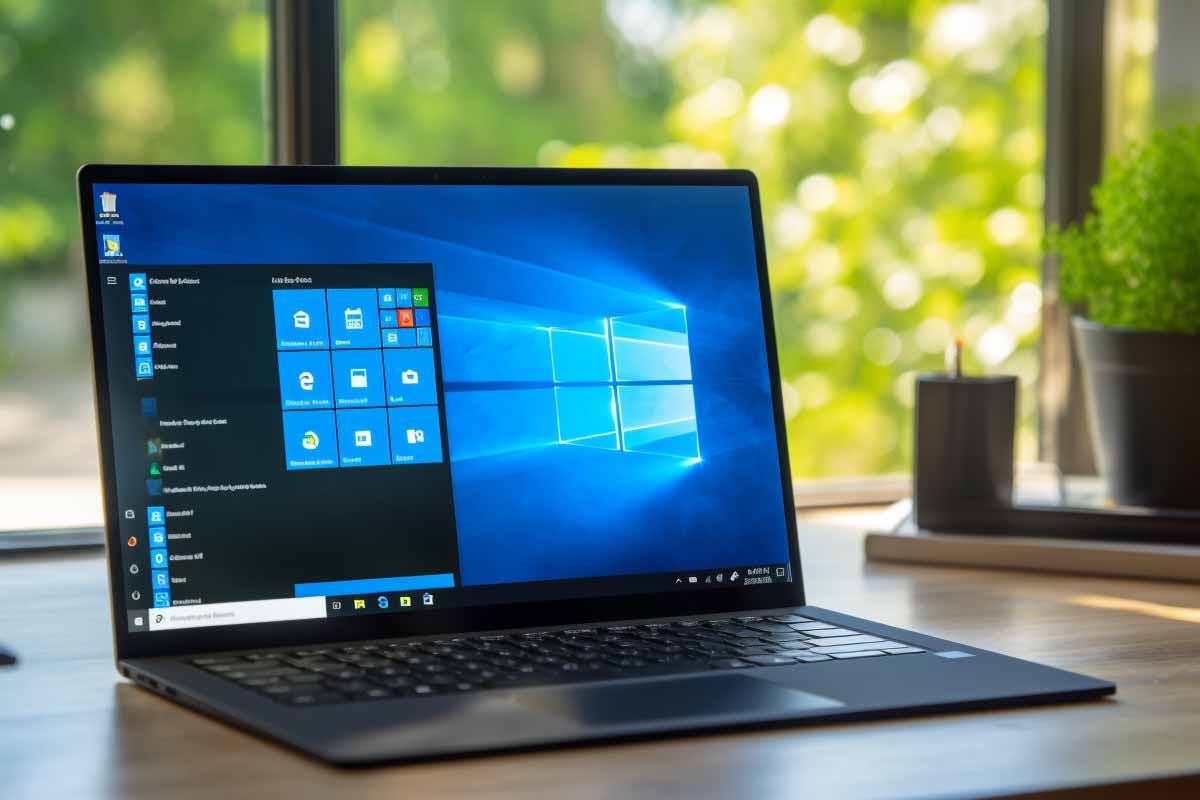
Most help desk tickets are really operating system problems hiding behind vague user reports. If you can work through CompTIA A+ Operating Systems the right way, you are not just memorizing menu paths for the exam. You are learning how to install, configure, recover, and troubleshoot the systems that sit between users, hardware, and applications every day.
CompTIA A+ Certification 220-1201 & 220-1202 Training
Master essential IT skills and prepare for entry-level roles with our comprehensive training designed for aspiring IT support specialists and technology professionals.
Get this course on Udemy at the lowest price →Quick Answer
The CompTIA A+ Operating Systems domain teaches you how Windows, macOS, Linux, and mobile operating systems are installed, configured, supported, and troubleshot in real help desk work. It is one of the most practical Core 2 topics because it shows up in login issues, app failures, update problems, permissions errors, and recovery tasks that technicians handle every day.
Definition
CompTIA A+ Operating Systems is the Core 2 exam domain that covers installing, configuring, maintaining, and troubleshooting desktop and mobile operating systems in support environments. It focuses on practical technician skills, not just definitions, so you can solve user problems on Windows, macOS, Linux, and mobile platforms.
| Primary focus | Operating system installation, configuration, maintenance, and troubleshooting as of August 2026 |
|---|---|
| Core platforms | Windows, macOS, Linux, iOS, and Android as of August 2026 |
| Typical support tasks | Accounts, updates, recovery, permissions, apps, settings, and remote support as of August 2026 |
| Help desk relevance | High, because OS issues drive a large share of end-user support tickets as of August 2026 |
| Exam style | Scenario-based troubleshooting and task recognition as of August 2026 |
| Best study approach | Hands-on navigation, repeated practice, and lab simulations as of August 2026 |
Why the Operating Systems Domain Matters on CompTIA A+
Operating systems are the bridge between the user and the machine. When a user says “my computer is broken,” the real problem is often a login failure, a missing driver, a stuck update, a bad user profile, or a misconfigured setting inside the OS.
That is why the CompTIA A+ Operating Systems domain matters so much. It teaches you how to support the environment where most daily work happens, which is exactly what entry-level technicians do in real jobs.
A technician who understands the operating system can often solve the issue without replacing hardware, reinstalling everything, or escalating too early.
The CompTIA A+ Core 2 exam is built around practical support ability, not textbook memorization. A candidate who knows where to find settings in Windows, how to spot a broken startup item, or how to confirm a permissions problem in macOS is better prepared than someone who only knows vocabulary terms.
- User access issues often point to accounts, profiles, or permissions.
- Application failures often point to compatibility, updates, or dependencies.
- Performance complaints often point to startup programs, disk space, or background services.
- Recovery problems often point to boot files, update corruption, or system restore options.
That connection between OS knowledge and daily support work is why ITU Online IT Training treats this domain as a core skill area, not a side topic. If you are preparing for the CompTIA A+ Certification 220-1201 & 220-1202 Training path, this is the section that turns exam knowledge into support confidence.
For exam prep, it also helps to understand the bigger support ecosystem. The U.S. Bureau of Labor Statistics reports steady demand for support-related roles, and the BLS Computer Support Specialists outlook remains a useful reference point for the kind of work A+ prepares you to do. The operating system is where that work usually starts.
What You Need to Know About the Core 2 Operating Systems Focus
The Core 2 Operating Systems domain is about navigation and action. You are expected to know what to do when a system needs a change, where the setting lives, and which built-in tool gives you the fastest path to diagnosis.
That means the exam is not testing whether you can recite a menu name in isolation. It is testing whether you can solve a support problem when the user describes symptoms instead of giving you a neat technical label.
What the exam really expects
On the exam, a question may describe a slow computer, a failed application launch, or a user who cannot access files after a password reset. You need to recognize the likely OS layer involved and choose the right next step.
- Configuration means changing how the system behaves.
- Maintenance means keeping the system updated, healthy, and usable.
- Troubleshooting means isolating the cause and applying the right fix.
Microsoft’s own Windows support documentation is useful here because it mirrors the kind of practical navigation the exam expects. The Microsoft Learn Windows documentation is a strong reference for menu paths, recovery features, and system tools.
Why familiarity matters more than memorization
Modern support work depends on speed. If you need to find Display settings, accessibility options, Device Manager, or recovery controls, you cannot stop and search from scratch every time. You need muscle memory.
That is why hands-on practice matters so much for the best A+ study guide approach. The more often you move through the interface, the faster you will recognize where to look when a real user ticket lands in your queue.
Pro Tip
When you study a setting, do not just learn what it does. Learn where it lives in Windows, macOS, and Linux so you can find it quickly during a scenario-based question.
How the Operating Systems Domain Works
Operating systems support works by connecting user actions to system-level controls. A technician starts with the symptom, identifies the OS area involved, and then uses built-in tools to confirm the root cause and apply a fix.
- Identify the symptom. The issue may be slow startup, repeated crashing, missing files, no network access, or failed login.
- Isolate the scope. Determine whether the issue affects one user, one device, or multiple systems.
- Check the relevant OS layer. That may mean accounts, services, updates, storage, startup items, permissions, or drivers.
- Use the right tool. Task Manager, Event Viewer, Disk Management, or Recovery options often reveal more than a general settings screen.
- Apply the fix and verify. Restart, test the user workflow, and confirm the issue is truly resolved.
This is the same structure technicians use in the field. A user who cannot print may have a printer queue issue, a driver issue, or a permissions issue. The OS gives you the tools to sort out which one it is.
The National Institute of Standards and Technology’s NIST SP 800-61 incident handling guidance reinforces a disciplined approach to troubleshooting: identify, contain, analyze, and recover. That same mindset works well for A+ operating system questions.
Why this structure works in real support
Support teams lose time when they guess. Structured troubleshooting saves time because it narrows the problem before you make changes.
- If the issue is only one user, suspect profiles, permissions, or account settings.
- If the issue is system-wide, suspect OS files, updates, services, or hardware drivers.
- If the issue appears after a recent change, suspect the last update, a new app, or a startup change.
Windows as the Primary Support Environment
Windows is the primary support environment in most A+ scenarios because it is the most common desktop operating system in business support. That means help desk technicians spend a large share of their day dealing with Windows accounts, settings, apps, devices, and recovery options.
The exam reflects that reality. If you know Windows well, you are already covering a major portion of the practical support work that A+ is meant to validate.
The Windows tools technicians use most
Technicians switch between different Windows interfaces depending on the task. The Settings app handles most modern configuration. Control Panel still appears in older workflows and deeper system tasks. Task Manager, Device Manager, and Event Viewer help with diagnosis.
- Settings is where you usually go for user-facing changes like display, sound, network, and accessibility.
- Control Panel still appears in legacy support and some deeper administrative paths.
- Task Manager helps identify startup impact, performance issues, and unresponsive applications.
- Device Manager helps identify driver problems and hardware status.
- Event Viewer helps trace system errors, service failures, and app crashes.
Common Windows support tickets include printer setup, slow startup, broken updates, audio problems, and app failures after a patch. These are not abstract exam examples. They are daily desktop support issues.
Microsoft documents many of these tools in the Windows client management docs, which are worth reviewing if you want your A+ study to feel closer to real support work.
Windows Editions, Features, and Use Cases
Windows editions matter because different versions and editions expose different features, settings paths, and management options. A technician supporting home users, business laptops, or domain-joined devices may need to know which Windows environment they are dealing with before making changes.
That distinction affects everything from policy management to advanced security settings. A support task that works in one edition may not be available in another, and the exam can absolutely test that kind of difference.
| Home-oriented edition | Usually focused on simple user control, personal devices, and straightforward settings paths |
|---|---|
| Business-oriented edition | Often includes features useful for domain joining, centralized policy, and managed support workflows |
Why edition differences matter in troubleshooting
If a user says they cannot access a policy setting, join a domain, or use a management feature, the first question is not “what is wrong with the computer?” It is “what edition of Windows is installed?”
Edition mismatches can also affect the support path. One machine may show a setting in the modern Settings app, while another requires a Control Panel route or administrative console. That is why the operating system environment should always be identified before troubleshooting.
Good support technicians do not assume every Windows screen looks the same. They verify the edition, the version, and the policy context before changing anything.
That habit also helps with exam questions because you can eliminate wrong answers based on what a given edition can or cannot do.
Windows Installation, Upgrades, and Recovery
Windows installation is the process of putting the operating system on a device, while recovery is the set of tools used to repair or restore a broken system. These tasks matter in both support work and A+ exam scenarios because they show whether you understand how systems are built, repaired, and returned to service.
Before any install or upgrade, technicians verify compatibility, backup data, and confirm installation media. Skipping those steps causes avoidable failures and lost time.
Common installation and recovery approaches
- Clean install starts from scratch and removes the old OS environment.
- Upgrade install keeps user data and apps when moving to a newer version.
- Repair install attempts to fix broken system files while preserving the environment.
- Reset or recovery options help restore a device after boot failures, corruption, or update problems.
These options are not interchangeable. A repair install is usually less disruptive than a clean install, but it may not fix deeper problems. A reset may solve stability issues, but it can also remove apps and settings depending on the chosen option.
For recovery references, Microsoft’s Windows support pages are useful for understanding boot repair, reset behavior, and startup troubleshooting steps.
Real support examples
A technician may need to repair a device that no longer boots after a failed update. Another common case is a system that starts but repeatedly crashes because core files are corrupted. In both situations, you should know when to try startup repair, when to roll back a change, and when a reinstall is the safer path.
Good support also means knowing when not to rush into a reinstall. If the problem is only a broken user profile or a bad startup item, full reinstallation is overkill.
Navigating Windows Tools and Administrative Utilities
Administrative utilities are the built-in tools technicians use to inspect system health, diagnose failures, and make targeted changes. For the A+ exam, knowing what each tool does is more valuable than memorizing every menu location.
The key is to understand which tool answers which question.
- Task Manager tells you what is running and what is consuming resources.
- Device Manager tells you whether hardware drivers and devices are healthy.
- Disk Management tells you how storage is partitioned and whether disks are recognized correctly.
- Services tells you whether background processes are stopped, delayed, or failing.
- Event Viewer tells you what errors, warnings, and failures the system recorded.
- System Information tells you about hardware, drivers, and system configuration.
These tools work best together. For example, if an app will not launch, Task Manager may show startup or memory issues, Event Viewer may show an application crash, and Services may reveal a dependency failure.
Warning
Do not rely on a single tool to explain the whole problem. A Windows issue often shows up in one utility, but the root cause is usually visible only after checking two or three system tools together.
That workflow also maps cleanly to exam questions. If the question describes a missing device driver, Device Manager is usually the first place to look. If it describes a boot-time crash, Event Viewer and recovery tools are more likely candidates.
User Accounts, Profiles, and Permissions
User accounts control who can sign in, what they can access, and which changes they can make. For support teams, account problems are one of the most common reasons people get stuck, especially after password changes, profile corruption, or device migration.
CompTIA A+ expects you to understand the support implications of different account types and privilege levels. That includes the difference between standard access and administrative access, plus the impact of permissions on files, folders, and application installation.
What technicians need to recognize
- Local accounts exist on a single device and are managed locally.
- Cloud-connected accounts sync identity and settings across devices in supported environments.
- Work-managed identities may be tied to company policies, access controls, and centralized administration.
- User profiles store desktop preferences, settings, and personal data.
- Permissions determine whether a user can open, modify, install, or delete content.
Temporary profile errors, locked accounts, and failed sign-ins are all classic support incidents. If a user gets a blank desktop after logging in, the problem may be a damaged profile rather than a broken system-wide OS installation.
For identity and access behavior, Microsoft’s Windows identity and access documentation is a useful technical reference. It helps explain why sign-in, permissions, and device access are so tightly connected.
Windows Configuration and Personalization for Support
Windows configuration covers the everyday settings technicians adjust to make a device functional and usable. Personalization is not just cosmetic; it can directly affect productivity, accessibility, and user satisfaction.
Support tickets often start with simple complaints such as “my screen is too small,” “I cannot hear sound,” or “the notifications are broken.” Those are OS-level issues, and they usually have fast fixes once you know where to look.
Common changes technicians make
- Adjust display scaling, resolution, brightness, and multi-monitor behavior.
- Change sound output, input devices, and volume settings.
- Update network connections and proxy-related options when needed.
- Set default apps for mail, browser, PDF, and media files.
- Enable accessibility options like magnifier, high contrast, captions, or narrator.
These are small changes, but they often solve large user complaints. A user who cannot read the screen may just need scaling changed. A user who thinks audio is broken may have the wrong output device selected. A user who cannot open attachments may need a default app repair.
The OS support skill here is not mystery-solving. It is knowing the exact path to the setting and understanding what the setting controls.
Application Installation, Compatibility, and Update Management
Application installation is the process of adding software to an operating system in a supported way. In A+ support work, the issue is often not whether the app exists, but whether it installs correctly, launches correctly, and stays updated without breaking the user’s workflow.
Technicians need to understand the difference between installer-based apps, packaged apps, and store-based apps. They also need to know why permissions, dependencies, and compatibility settings matter when software fails.
- Installer-based apps often require elevated permissions and may add services or drivers.
- Packaged or store-based apps are usually installed and updated through managed app systems.
- Compatibility issues can appear when older software is launched on newer OS versions.
- Dependencies such as runtime components or framework support can block launch or installation.
Application updates matter because they improve stability and security, but they can also introduce temporary failures. A broken app after an update may need reinstalling, repair, cache clearing, or compatibility review.
In support work, “the app is broken” is usually too vague to be useful. The real question is whether the problem is installation, permissions, compatibility, dependencies, or updates.
For a practical vendor reference, Microsoft’s Windows support center includes repair and app troubleshooting paths that align well with the kind of tasks the exam expects you to understand.
macOS Support Concepts and Common Technician Tasks
macOS is an important secondary support environment in mixed-device workplaces. Even if Windows is the main platform, technicians still need to recognize macOS interface elements and support basics.
The first things to know are the menu bar, the Dock, and System Settings. Those are the macOS equivalents of the navigation points most technicians use constantly in Windows.
Common macOS support tasks
- Adjust user settings in System Settings.
- Install or remove applications using supported methods.
- Check storage usage and manage local space.
- Verify network access and shared resource connections.
- Confirm account access and password behavior when users cannot sign in.
macOS support differs from Windows in navigation, terminology, and permissions behavior. A technician who understands one platform well but cannot find basic settings on the other will lose time in a mixed environment.
Apple’s official macOS support documentation is the right place to verify menu paths, recovery actions, and system behaviors. That matters because exam questions may describe macOS scenarios in a way that assumes you recognize the workflow, not the button name.
Linux Fundamentals for A+ Support
Linux appears in A+ as a foundational support topic, not as a deep administration certification track. The exam expects recognition, basic navigation awareness, and troubleshooting logic more than advanced command-line mastery.
That means you should know what a distribution is, how a graphical interface differs from terminal-based management, and why permissions and file paths behave differently from Windows in some support contexts.
What technicians should be comfortable with
- Recognizing that Linux may use different desktop environments and package methods.
- Understanding basic terminal awareness for simple checks and configuration verification.
- Knowing that file permissions can block access even when the file is present.
- Being able to identify whether an issue is local, service-related, or configuration-related.
Linux comes up in remote systems, embedded devices, lab environments, and server-adjacent support scenarios. A technician may need to verify connectivity, check logs, or confirm whether a service is running before escalating.
The Linux Foundation is a strong authoritative reference for the ecosystem and terminology. For A+, the goal is not command-line depth. The goal is enough familiarity to support a user or identify the next step.
Mobile Operating Systems and BYOD Support Awareness
Mobile operating systems matter because many workplaces allow personal devices for email, messaging, and file access. In a bring-your-own-device environment, support questions often involve authentication, sync, app permissions, and managed access policies.
Mobile OS problems rarely look like desktop problems, but they follow the same support logic. A login issue might be a password problem, a token problem, or a policy restriction. A sync issue might be account settings, network access, or an app version mismatch.
Typical mobile support incidents
- User cannot sign in to work email after a password reset.
- Mobile app crashes after an operating system update.
- Calendar or contacts do not sync between devices.
- Account access is blocked because device compliance rules are not met.
Technicians also need to understand that mobile support is often policy-driven. If a device is owned by the user but used for work, support may be limited by enrollment, security controls, or company-managed app rules.
For mobile security and access patterns, the Cybersecurity and Infrastructure Security Agency is a useful public reference for endpoint and identity guidance that supports the broader technician mindset.
Virtualization and Remote Support Context
Virtualization is the use of software to run one operating system inside another environment, usually inside a virtual machine. For A+ students, it is valuable because it lets you test installs, practice recovery steps, and reproduce problems without risking a production system.
Remote support matters for the same reason. Many technicians will troubleshoot an OS without standing in front of the device, so they need to think clearly about what can be checked remotely and what requires local access.
Why virtual machines are useful
- They let you practice installs and rollbacks safely.
- They help you test software behavior in a controlled environment.
- They make it easier to simulate account, update, and boot issues.
- They support repeated lab practice without wiping a physical machine.
Remote tools change the technician’s perspective. You may not see the machine directly, but you still need to diagnose OS problems by checking settings, logs, services, updates, and user-specific behavior.
For deeper architectural context, vendor documentation such as Microsoft virtualization guidance helps explain how labs and remote environments are structured in real support work.
Troubleshooting Operating System Problems the Way Technicians Do
Operating system troubleshooting is a disciplined process, not random guessing. The technician starts with symptoms, narrows the scope, checks likely OS components, and then tests the fix before closing the ticket.
That workflow is especially important for common support issues such as slow startup, app crashes, failed logins, missing desktop icons, and update loops.
- Confirm the symptom. Ask what changed, when the issue started, and whether it affects other users or devices.
- Check the simplest cause first. Look at account access, recent updates, startup items, storage space, and obvious configuration changes.
- Use logs and utilities. Event Viewer, Task Manager, Services, and Device Manager often expose the real failure point.
- Test one fix at a time. Avoid changing too many things at once or you will not know what worked.
- Verify the user workflow. Make sure the problem is solved in the real task, not just on the login screen.
A help desk ticket that says “computer slow” could mean too many startup programs, low disk space, a failed update, malware, or a hardware issue. The OS supports the investigation, but it does not replace the technician’s judgment.
That exact skill set is what makes this one of the most practical parts of CompTIA A+. You are learning to think like the person who gets the ticket and resolves it before it becomes an escalation.
Common Operating System Exam Traps and Mistakes to Avoid
Exam traps usually come from confusing one operating system workflow with another. Windows, macOS, and Linux can all solve similar problems, but they do not use the same menu paths or tools to do it.
That means a question may be testing platform recognition as much as troubleshooting knowledge. The wrong answer often looks plausible if you ignore the OS context.
- Do not assume all settings live in the same place. Windows Settings is not macOS System Settings.
- Do not confuse similar tools. Task Manager, Activity Monitor, and top-level process tools are not interchangeable.
- Do not ignore administrative privileges. Many changes require elevated access.
- Do not overlook updates. Many OS issues come from broken or pending update states.
- Do not skim scenario questions. The correct answer is often implied by the symptom, not stated directly.
One practical exam strategy is to ask: “Which operating system is this question actually describing?” Once you answer that, half the wrong choices usually disappear.
For framework-style troubleshooting discipline, the CISA cybersecurity best practices pages are useful because they reinforce careful, methodical support habits that translate well into exam thinking.
How to Study the Operating Systems Domain for the A+ Exam
The best way to study the Operating Systems domain is to combine reading, repetition, and hands-on navigation. If you only read about the tools, you will recognize the words but not the screens. If you only click around randomly, you will miss the pattern behind the interfaces.
A strong study plan should make you comfortable finding settings, opening administrative tools, and understanding what each tool is for.
A practical study routine
- Study one OS topic at a time. Focus on installation, accounts, tools, or recovery before moving to the next topic.
- Practice navigation paths. Open the tools repeatedly until you can find them without guessing.
- Create small labs. Change a setting, break a profile, simulate a startup issue, or test a recovery path in a safe environment.
- Use comparison charts. Compare Windows, macOS, and Linux side by side so the differences stick.
- Review by symptom. Study from a ticket perspective: slow, broken, missing, failed, locked out, or not responding.
That is also where the best A+ study guide approach earns its value. A good guide should not just define terms. It should help you connect interface navigation with troubleshooting decisions, which is exactly what this domain requires.
If you are preparing through ITU Online IT Training, this is the domain to practice in layers. Read the concept, open the system, find the tool, and then test the workflow until it becomes automatic.
Key Takeaway
- CompTIA A+ Operating Systems is practical support training, not a memorization exercise.
- Windows is the most important platform to know, but macOS, Linux, and mobile OS concepts still matter.
- Administrative tools like Task Manager, Device Manager, Disk Management, Services, and Event Viewer are central to troubleshooting.
- User accounts, permissions, updates, and recovery are common causes of help desk tickets.
- Hands-on practice is the fastest way to turn exam knowledge into job-ready support skill.
CompTIA A+ Certification 220-1201 & 220-1202 Training
Master essential IT skills and prepare for entry-level roles with our comprehensive training designed for aspiring IT support specialists and technology professionals.
Get this course on Udemy at the lowest price →Conclusion
The Operating Systems domain is one of the most job-relevant parts of CompTIA A+ Core 2 because it reflects the work technicians actually do. When a user has a login issue, a broken app, a failed update, or a slow computer, the OS is usually where the answer lives.
If you understand how Windows, macOS, Linux, and mobile operating systems behave, you can troubleshoot faster, make better support decisions, and prepare more effectively for the exam. That is the real value of this domain: it builds habits you will use long after test day.
Treat every practice session as both exam prep and job prep. Open the tools, follow the menu paths, compare platforms, and solve problems like a support technician. That is how you complete a a in a way that actually sticks.
CompTIA® and A+™ are trademarks of CompTIA, Inc.
