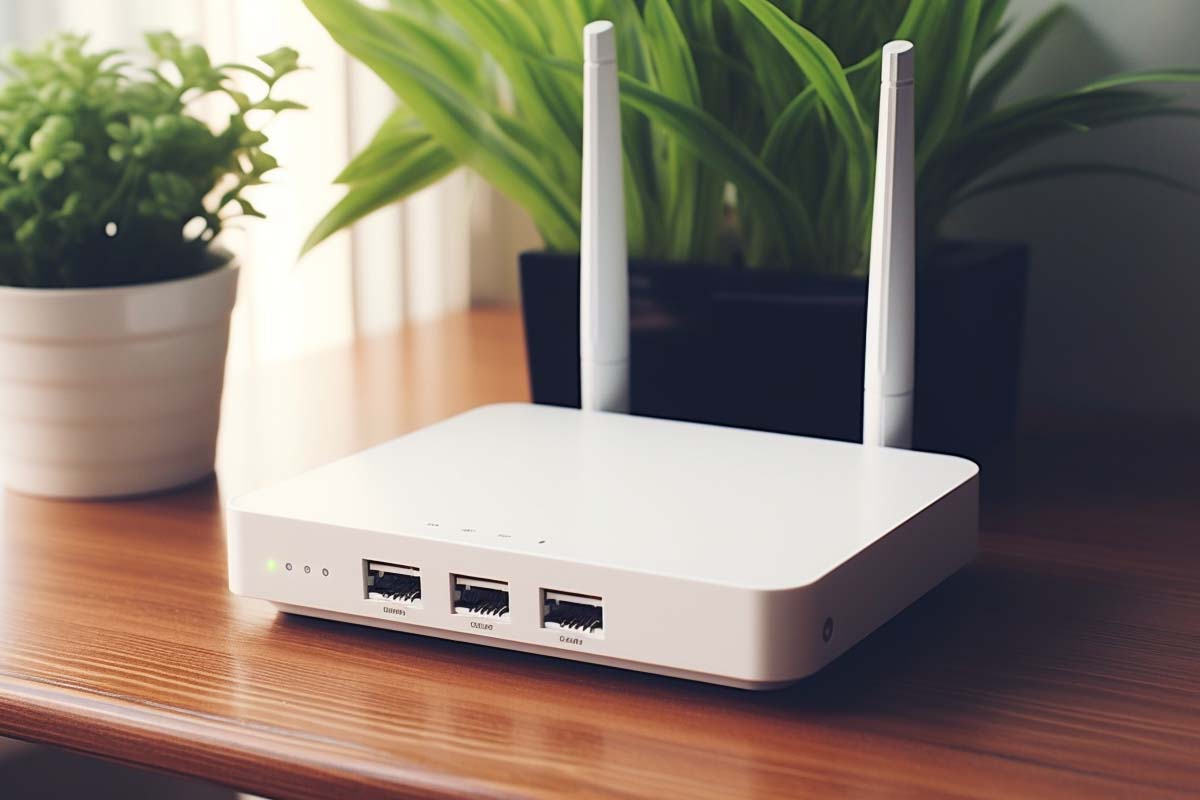
Teleworking on a home Wi-Fi network that was set up for streaming, gaming, and smart speakers is a problem when work files, VPN sessions, and cloud logins all share the same router. The good news is that you do not need a network engineering background to make a real difference. This guide shows how to secure your home wireless network for teleworking with practical steps that reduce risk fast.
CompTIA N10-009 Network+ Training Course
Discover essential networking skills and gain confidence in troubleshooting IPv6, DHCP, and switch failures to keep your network running smoothly.
Get this course on Udemy at the lowest price →Quick Answer
To secure your home wireless network for teleworking, lock down router admin access, update firmware, use WPA2 or WPA3, remove unknown devices, separate work gear from IoT devices, and disable risky features like remote administration and WPS. These steps materially lower the chance of credential theft, unauthorized access, and malware spread in a home office environment.
Quick Procedure
- Inventory every device on the network and note the router model.
- Change the router admin username and password.
- Update router firmware and all work devices.
- Enable WPA2 or WPA3 and replace weak Wi-Fi passwords.
- Remove unknown devices and disable risky features like WPS.
- Separate work devices from personal and smart-home devices.
- Schedule a monthly security check and document your settings.
| Primary Goal | Secure your home wireless network for teleworking as of August 2026 |
|---|---|
| Highest-Priority Fix | Change router admin credentials and update firmware as of August 2026 |
| Recommended Wi-Fi Security | WPA2-AES or WPA3 as of August 2026 |
| Maintenance Cadence | Monthly checks as of August 2026 |
| Risk Reduction Focus | Unauthorized access, weak passwords, outdated firmware, and device sprawl as of August 2026 |
| Best Practice Source Set | FTC, NIST Cybersecurity Framework, and CISA as of August 2026 |
Why Home Wi-Fi Security Matters More When You Work From Home
Home wireless security is no longer just about keeping neighbors off your internet connection; it now helps protect work documents, cloud logins, VPN traffic, and private conversations that move across the same network. If one family device is compromised or a router is left at factory settings, the impact can reach far beyond slower speeds or buffering video.
Teleworking creates a mixed-trust environment. Your work laptop may be protected by company controls, but it still depends on the home router, the local Wi-Fi password, and every other device sharing the same connection. A single weak spot can expose email sessions, file shares, and collaboration tools used all day long.
The Federal Trade Commission (FTC) regularly reminds consumers to use strong passwords, update software, and secure home networks, while NIST emphasizes basic protective controls such as access control, system maintenance, and recovery planning. Those are not enterprise-only ideas. They are the minimum viable controls for a home office that handles real work.
Most home Wi-Fi problems are not dramatic hacks. They are quiet failures of defaults, old firmware, reused passwords, and too many devices on one flat network.
What can go wrong on a weak home network?
- Credential theft: A malicious actor can attempt to capture login data if a device, router, or wireless configuration is weak.
- Unauthorized access: Default router passwords or weak Wi-Fi passphrases can let outsiders join the network.
- Device compromise: An old printer, camera, or phone can be exploited and used as a foothold.
- Work disruption: Suspicious traffic, lockouts, and repeated password resets make troubleshooting harder during work hours.
Note
If your home network is carrying work traffic, treat the router like a business asset. That means documenting settings, limiting access, and updating it on a schedule instead of waiting for a problem.
Start With a Quick Home Network Security Check
Before changing settings, build a baseline. A network inventory is simply a list of every device that should be connected, including work laptops, phones, printers, smart TVs, cameras, and home assistants. Without that list, you cannot tell whether a device is unknown or just forgotten.
Log in to the router dashboard and look at the connected-device list, wireless name, security mode, and firmware version. Most routers show this in a web interface such as 192.168.1.1, 192.168.2.1, or another local address printed on the label. Some systems use a mobile app, but the information you need is the same.
Look for devices with generic names, unexpected activity times, or more devices than you expected. A “Samsung TV,” “HP-Print,” or “iPhone” may be normal. “Unknown,” “Android-5f3a,” or a device you do not recognize is a reason to investigate before making other changes.
Write down the baseline before you change anything
- Record the router model and serial number from the label.
- Note the firmware version currently installed.
- List the Wi-Fi network names and whether they are 2.4 GHz or 5 GHz.
- Save the admin login method and whether MFA is available.
- Capture the connected-device list so you can compare it later.
This baseline is useful if a firmware update changes settings or if you need to prove that a suspicious device was removed later. It also makes future troubleshooting easier because you are working from facts, not guesses.
Secure the Router Admin Access First
Router admin access controls the entire network, so it is the first thing to lock down. If someone gets into the admin panel, they can change DNS settings, create guest access, weaken encryption, or lock you out completely. That is why factory credentials and shared admin logins are a real risk.
Change the default username and password immediately if the router still uses them. Use a long, unique password that is not reused for email, shopping, or work systems. If the router supports Multi-factor Authentication, turn it on for the admin account.
Store the new login in a Password Manager or another secure record that you can access if the router is reset. Do not leave the login on a sticky note next to the router. That defeats the whole point.
For teleworking, the router login is not a family convenience feature. It is the control plane for everything on the network.
| Weak Admin Access | Default usernames, shared passwords, and no MFA make router takeover easier. |
|---|---|
| Strong Admin Access | Unique credentials, MFA if available, and stored recovery details reduce takeover risk. |
Official consumer security advice from FTC and safe-configuration guidance from CISA both support the same principle: secure the management interface before you rely on the rest of the network.
How Do You Update Router Firmware and Device Software?
Firmware is the software built into the router that controls its behavior, and keeping it updated closes security holes that attackers can exploit remotely. If your router is still running an old version, it may be vulnerable even if the Wi-Fi password is strong. That is why firmware maintenance is not optional.
Check the router dashboard for an update button or visit the manufacturer support page using the model number you recorded earlier. Some routers can download and install updates automatically, while others require manual uploads. Either way, update the router first, then update work laptops, phones, tablets, and printers.
Device software matters because the network is only as secure as the weakest endpoint. A fully patched router does not help if a work laptop is running an old operating system or if a printer is exposed with outdated embedded software. This is especially important when teleworking relies on browsers, collaboration platforms, and VPN clients all day long.
A practical update routine
- Check the router firmware version and compare it to the vendor’s latest release.
- Install the update from the dashboard or support portal.
- Restart the router after the update if the vendor requires it.
- Patch work endpoints including laptops, phones, tablets, and printers.
- Set a monthly reminder so updates do not depend on memory.
Pro Tip
If you work remotely full time, make firmware and patch checks part of your monthly calendar, the same way you would pay a bill or review backups.
For formal security hygiene, NIST and CISA both emphasize timely maintenance as a core defense. That advice applies just as much to a home router as it does to a corporate firewall.
What Wi-Fi Encryption and Authentication Should You Use?
Wi-Fi encryption protects wireless traffic from casual interception, while authentication determines who can join the network. Use the strongest mode your router supports, ideally WPA3. If WPA3 is unavailable, use WPA2 with a strong passphrase and avoid older modes such as WEP or WPA.
Older or open networks are easier to abuse because they make it simpler for outsiders to join or observe traffic. That risk matters when you are sending work email, joining meetings, or logging in to cloud apps. A weak Wi-Fi configuration can undermine everything else you do correctly.
Use a Wi-Fi password that is long, unique, and not built from personal details. Good examples are passphrases built from unrelated words, numbers, and symbols. Bad examples are house addresses, pet names, birthdays, or anything someone could guess from social media.
Also change the default network name if it reveals the router brand, model, or your household identity. A network called “Smith_WiFi” or “Netgear88” gives away more than you need to share. A neutral name is safer and less useful to an attacker.
Wi-Fi settings to check right now
- Encryption mode: WPA3 preferred, WPA2 acceptable if configured correctly.
- Password strength: long, unique, and not reused elsewhere.
- Network name: neutral and not personally identifiable.
- Legacy modes: disable WEP and WPA if the router allows it.
Vendor guidance from Microsoft and security best practices published by NIST both align on the same point: strong authentication is basic protection, not an advanced feature.
How Do You Review Connected Devices and Remove the Unknown Ones?
Connected-device review is the fastest way to spot unwanted access on a home network. Open the router’s device list and compare each entry with the household inventory you wrote earlier. If you cannot explain what a device is, do not let it stay connected by default.
Look at the device name, manufacturer, MAC address, and the time it connected. Some routers also show whether a device is on Wi-Fi or wired Ethernet, which can help you spot an old smart TV or printer that no longer belongs on the main network. Unknown devices may be harmless, but they should never remain unchallenged.
If the device is old, unused, or not needed for work, block it. If it is a family device you forgot about, rename it in the router if possible so it is easier to recognize later. Then keep an inventory of approved devices so future checks take minutes instead of an hour.
- Open the connected-devices page in the router dashboard.
- Compare every entry to your approved household inventory.
- Investigate unknown devices by checking the manufacturer and MAC address.
- Block or remove devices that are not recognized or no longer needed.
- Renumber and rename devices if your router allows clearer labels.
Warning
Do not assume a strange device is harmless just because internet speed seems normal. An unauthorized device can sit quietly on a network and still create exposure.
Security guidance from FTC and the Cybersecurity and Infrastructure Security Agency (CISA) both support the same habit: know what is connected, then remove what should not be there.
Should You Separate Work Devices From Household Devices?
Network segmentation means separating trusted work devices from lower-trust devices such as smart TVs, cameras, speakers, and visitors’ phones. This reduces cross-contamination risk. If one gadget is compromised, it should not automatically have access to the devices you use for work.
The simplest version is a guest network. Put smart home gear, visitors, and casual devices on the guest SSID, and keep work laptops and phones on the most trusted network available. If your router supports device isolation or separate SSIDs, use them. If it supports more advanced grouping, use that too.
This setup helps in two ways. First, it limits lateral movement if a device is compromised. Second, it makes troubleshooting easier because you know which devices belong to work, which belong to household use, and which should never talk to each other.
| Single Flat Network | Everything shares the same trust level, which increases blast radius if one device is compromised. |
|---|---|
| Separated Networks | Work devices, guest devices, and smart-home gear are isolated, which reduces risk and simplifies support. |
If your employer provides security guidance for remote work, follow it. Many organizations expect company-managed devices to stay off personal smart-home segments and on the cleanest network available. That is a practical control, not bureaucracy.
What Router Features Should You Disable?
Attack surface is the set of ways a system can be reached or misused, and many home routers ship with convenience features that increase it. If you do not need remote administration, file sharing, universal plug and play, or risky legacy services, disable them. Convenience is useful until it becomes a security problem.
WPS, or Wi-Fi Protected Setup, is another feature worth reviewing carefully. If your router supports it and you do not need it, turn it off. The same goes for remote admin access from the internet. Unless you specifically need that function and understand the security tradeoff, leave it disabled.
Also check the physical placement of the router. Keep it in a secure spot, not near a window or in a place where guests can reset it or access its ports. A locked-down dashboard does little good if anyone can press the reset button or unplug it during the workday.
Common features to review
- Remote administration: disable unless there is a real need.
- WPS: disable if not required.
- UPnP: disable if you do not need automatic port mapping.
- Guest access rules: limit what guest devices can reach.
- Physical access: place the router where it cannot be tampered with easily.
Standards and implementation guidance from CISA and vendor support pages from router manufacturers consistently point to the same rule: remove what you do not need, because every extra feature adds more risk.
How Should You Protect Teleworking Sessions Beyond the Router?
Router security is only one layer. Endpoint security and account protection matter just as much because your work session still depends on the laptop, browser, collaboration apps, and identity controls you use every day. A secure Wi-Fi network cannot compensate for poor sign-in hygiene or unpatched software.
Use company-approved VPNs, secure sign-ins, and managed applications for work communications and file sharing. Avoid public or shared Wi-Fi for work unless your organization explicitly allows it and you are using the required protections. If you must work away from home, verify that your device still follows company policy.
Keep browsers, operating systems, collaboration tools, and mobile apps updated. Phishing pages, malicious attachments, and malicious links often succeed because people are rushed, not because the network is weak. The best home Wi-Fi configuration in the world will not stop a user from entering credentials into a fake login page.
Teleworking security is layered security: the router, the device, the account, and the user all need basic protection for the whole setup to hold.
For broader cybersecurity guidance, NIST and CISA both stress that no single control is enough. That is especially true in a home office where personal and work activities share the same environment.
What Is the Best Ongoing Maintenance Routine?
The best maintenance routine is short, repeatable, and scheduled. A monthly security check is usually enough for most homes: confirm firmware updates, review connected devices, verify that the Wi-Fi password is still strong, and look for settings that changed after a reset or provider swap.
Run the same check after adding a new smart device, moving to a new home, replacing the router, or changing internet providers. Those moments often introduce default settings, forgotten passwords, or new firmware versions that deserve attention. If performance suddenly drops or you start seeing repeated login prompts, treat that as a signal to investigate.
Document the important settings now. Save the admin login method, SSID names, guest network rules, and any special device labels. If the router fails and has to be replaced, that record will save time and prevent mistakes during recovery.
A simple maintenance checklist
- Review firmware status and install pending updates.
- Check connected devices for anything unfamiliar.
- Confirm Wi-Fi security settings are still WPA2 or WPA3.
- Test work connectivity on the trusted network.
- Update your inventory after new devices are added or removed.
Key Takeaway
A monthly routine beats an emergency cleanup. Small, steady checks prevent the kind of drift that makes home networks weak over time.
This is also where practical networking skills matter. The CompTIA N10-009 Network+ Training Course is relevant because it reinforces troubleshooting habits around DHCP, IPv6, switches, and core home-office connectivity issues that show up when wireless settings change.
How Do You Troubleshoot Common Home Wi-Fi Security Issues?
Troubleshooting means working through a problem methodically, and most home Wi-Fi security issues can be resolved without advanced tools. If you forgot the router password, check the label, the setup guide, or your password manager. If the router login page will not open, confirm you are connected to the network and try the router’s local address from the device manual.
If a firmware update changes settings or temporarily disrupts connectivity, restart the router and reconnect approved devices one by one. That is normal. Updates can reset Wi-Fi names, force new passwords, or change how guest access works. Keep your baseline notes so you can restore the intended configuration quickly.
If you suspect an unauthorized device, change the Wi-Fi password, reboot the router, and reconnect only approved devices. If the router is very old and no longer receives updates, replacement may be safer than trying to harden unsupported hardware. Unsupported equipment is a permanent risk because security fixes stop arriving.
Common symptoms and what they usually mean
- Frequent disconnects: may indicate interference, outdated firmware, or overloaded hardware.
- Unknown device names: may indicate forgotten household devices or unauthorized access.
- Repeated login prompts: may point to expired credentials, device reauthentication, or account issues.
- Slow performance after changes: may mean the router needs a reboot or a setting needs to be restored.
For household connectivity problems, vendor support pages are often the fastest source of exact steps because menus vary by model. When in doubt, use the router manufacturer’s documentation first, then verify that your security choices still match the recommendations from CISA and NIST.
CompTIA N10-009 Network+ Training Course
Discover essential networking skills and gain confidence in troubleshooting IPv6, DHCP, and switch failures to keep your network running smoothly.
Get this course on Udemy at the lowest price →How to Secure Your Home Wireless Network for Teleworking: The Bottom Line
Securing your home wireless network for teleworking starts with the router, but it only works when you layer the basics. Change the admin credentials, update firmware, use WPA2 or WPA3, review connected devices, separate work and household gear, and disable features you do not need.
That combination does not create perfection, and it does not have to. The goal is meaningful risk reduction that protects work files, logins, and private communications without turning your home into a lab. The result is a stronger network, fewer surprises, and less time spent recovering from avoidable mistakes.
Start with the checklist today, then set a monthly reminder to repeat it. Treat the home router like a work asset, not just a utility box, and your teleworking setup will be much harder to misuse.
Key Takeaway
- Change router admin credentials first because the admin panel controls the entire home network.
- Use WPA2 or WPA3 to protect wireless traffic and reduce unauthorized access.
- Update firmware and endpoints regularly because outdated software is a common weak link.
- Review connected devices and remove anything you cannot identify or no longer need.
- Separate work devices from smart-home gear to reduce cross-contamination and simplify troubleshooting.
For deeper networking troubleshooting skills that support a secure teleworking setup, the CompTIA N10-009 Network+ Training Course can help you build confidence with the kind of issues that show up when home networks, DHCP, IPv6, and switch behavior all intersect.
CompTIA® and Network+™ are trademarks of CompTIA, Inc.
